SSH
The SSH page helps with access to the server: who can get in, with which keys, how the server is hardened, and who tried.
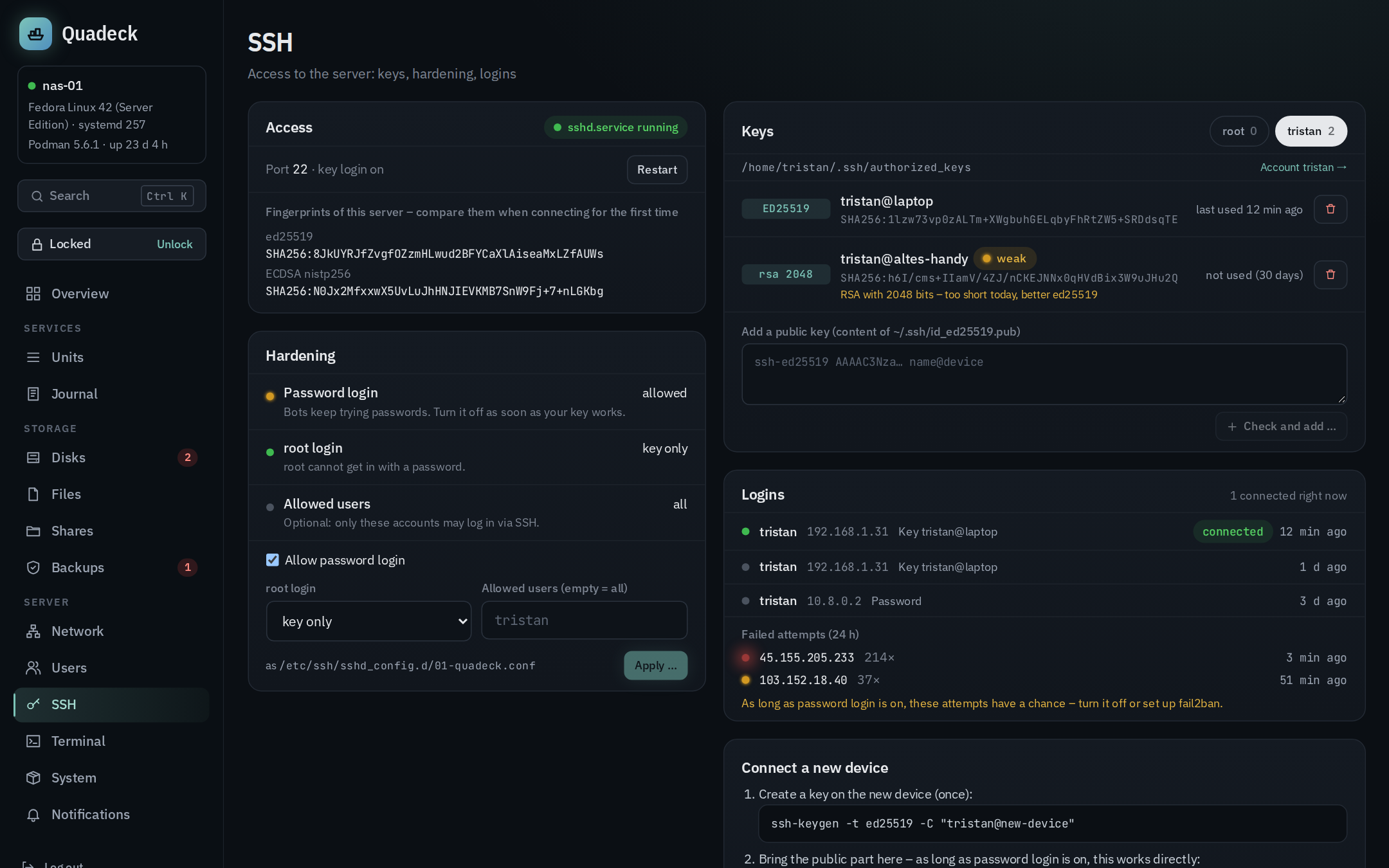
Access
State of sshd (or ssh on Debian), the port it listens on, start, restart and enable at boot.
There is deliberately no stop button: stopping SSH on a headless server locks you out.
The host key fingerprints (SHA256, as ssh-keygen -l prints them) are shown so you can compare
them when a client asks "are you sure you want to continue connecting?" the first time.
Keys per user
For every user with a home directory, ~/.ssh/authorized_keys: key type, size, comment, SHA256
fingerprint, and when the key was last used (from the journal's "Accepted publickey" lines).
- Add a public key: paste the public key line and press Check and add …. It is parsed and checked: duplicates and DSA keys are
refused, RSA keys below 3072 bits are marked as weak. Keys with options in front of them
(
from=,command=, …) are not added through the UI; existing ones are shown with their options.~/.sshandauthorized_keysare created with700/600and the right owner when needed. - Remove a key (by fingerprint).
- Permission problems that make
sshdignore the file (world-writable home, wrong owner) are shown, because they are the usual reason a key "does not work".
Hardening
Password login, root login (yes, prohibit-password, no) and the allowed users are written as
a drop-in /etc/ssh/sshd_config.d/01-quadeck.conf; your sshd_config is never edited. Before
writing, sshd -t checks the result; if it refuses, the drop-in is rolled back. After writing,
sshd is reloaded. The page shows the values that are actually in effect from sshd -T, not what
the file says.
Lock-out guard
Switching password login off or removing the last working key is allowed only when somebody can still log in with a key afterwards: a user who is still allowed, is not root when root login is off, has no permission problems, and has at least one key without restricting options. Otherwise the change is refused with the reason, and only an explicit confirmation forces it.
Logins
The last successful logins (user, IP, key or password, time) and the failed attempts of the last
24 hours grouped by IP, both from the journal. A login counts as connected (green dot) only
while its connection is still open: the client address and port from the journal are matched
against the established connections to sshd's ports (ss -Htn state established). Older logins
are shown with a grey dot.
Connect a new device
Ready-made commands with the server's address filled in: ssh-keygen for a new key on the client,
ssh-copy-id to install it, and ssh to connect. Copy, paste, done.
Without OpenSSH
The page shows an install button with the command for your distribution and enables the service after installing.