Overview and services
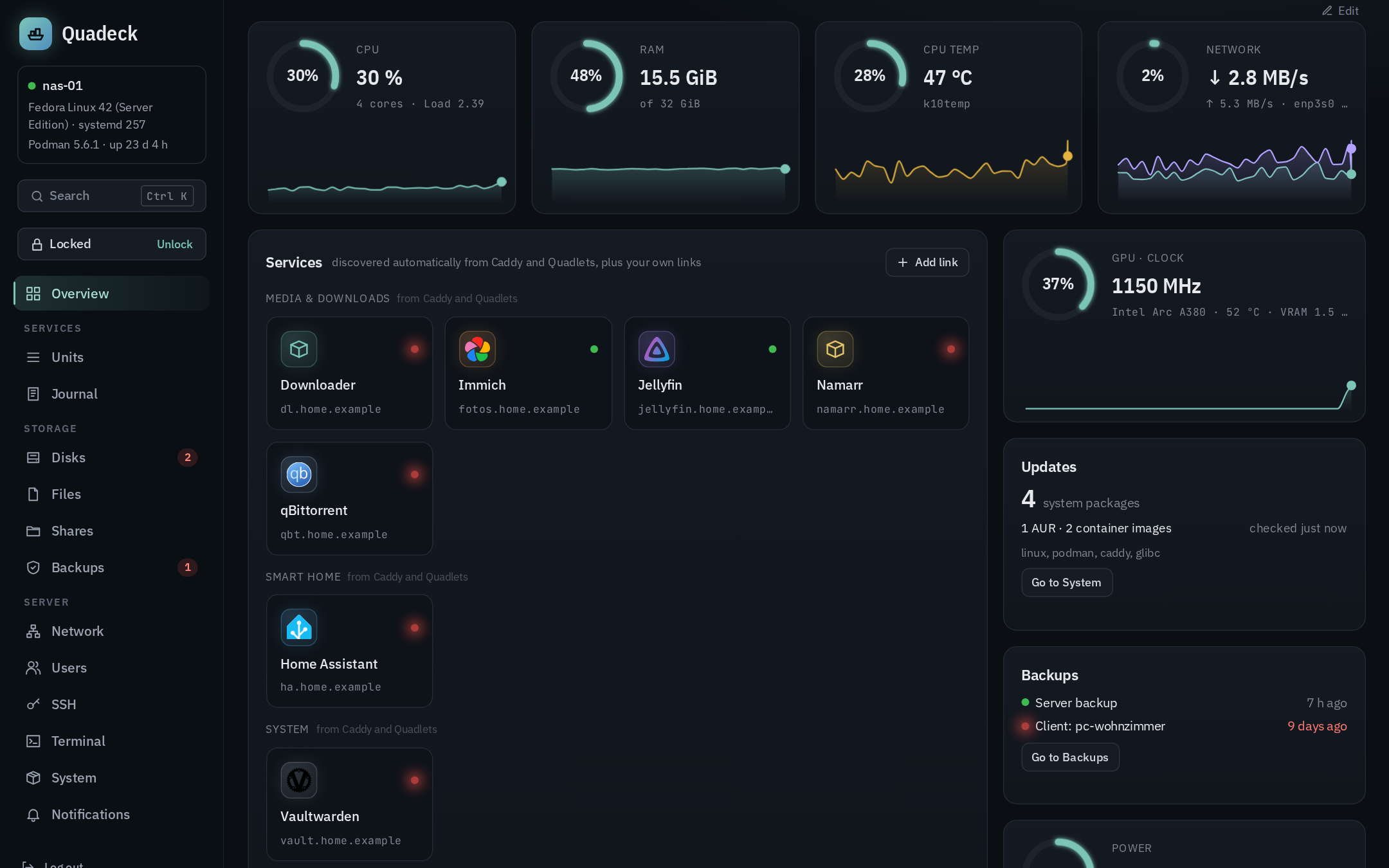
The overview (Overview) is the start page: gauges for the host, failed units, the service tiles, storage, the next timers and your shares, plus whatever you add from the widget catalog. Everything on it is discovered; the layout, the widgets, the tiles and the links are the only things you edit.
How services are discovered
A service tile needs a name, a URL, an icon and a health state. Quadeck collects them from several places and merges them in a fixed order; later sources override earlier ones.
- Caddy supplies the public URL of every service. Quadeck reads Caddy's configuration from the
admin API (
GET /config/onhttp://localhost:2019), otherwise throughcaddy adapt, otherwise with its own Caddyfile reader (for Caddy inside a container, where the admin API is not reachable from the host). Every route with a host and a reverse proxy becomes a candidate. - Containers: the upstream of the route (
jellyfin:8096,localhost:8096,10.88.0.5:8096) is matched to a Podman container by container name, network alias, container IP or published port. Targets that do not match a container stay as external tiles; nothing is guessed. When a container behind a route is deleted – the container and its unit are gone, e.g. Delete Quadlet … – the route no longer makes a tile, even though it is still in the Caddyfile; the tile disappears right after the deletion. A stopped Quadlet keeps its tile, shown as down, because its unit is still there and can be started again. Routes to hosts that never were a container (another machine on the LAN) are not affected. - Unit: the label
PODMAN_SYSTEMD_UNITthat Quadlet sets on every container links it to its unit, so the tile knows its journal and can be restarted through systemd. - Labels in the Quadlet file refine or override the discovery:
[Container]
Label=quadeck.name=Jellyfin
Label=quadeck.group=Media
Label=quadeck.icon=jellyfin          # slug from dashboard-icons, or glyph:play
Label=quadeck.url=https://jf.example.de
Label=quadeck.hidden=true
A container with quadeck.url but no Caddy route gets a tile too. Only http(s) URLs are
accepted.
5. Overrides from the UI (name, group, URL, icon, pinned, hidden) have the highest priority.
Empty fields keep following the discovery.
Names come from the label, the container name or the Caddy host, in title case. Groups come from
quadeck.group, otherwise from a built-in list of known applications (media, downloads, home
automation, …); everything else lands in Apps, manual links in Links.
Services page
Services & links in the sidebar (or Services page in the header of the services widget)
opens a page with only the tiles, over the whole width, without the other widgets: the place to
open your apps from, also as a browser start page. A search above the tiles filters by name,
host, URL and group. Edit (or E) works as in the widget: move, resize and regroup tiles,
icon size, hidden services. The tile layout and the icon size are the same on both, so a change
on one shows on the other. The services widget stays on the overview.
Manual links
Devices without a Quadlet (router, printer, another host, a NAS) are added with Add link on the services card: name, URL, group, icon (with the same search over dashboard-icons as when editing) and whether the URL is health-checked. They live in the same card as the discovered services and are edited in the same dialog.
Editing a service
In edit mode (Edit or the E key) a click on a tile opens Edit
Icons
Icons come from dashboard-icons. Candidates are
built from the image name, the unit name and the Caddy host, including aliases such as ha →
home-assistant. Icons are cached under /var/lib/quadeck/icons, so the dashboard works offline
after the first load. Without a hit, the favicon of the service is used, then a neutral category
glyph. quadeck.icon=glyph:name forces one of the built-in glyphs. An icon picked in the UI shows
right away, also when the automatic one could not be loaded.
Icon size (Small, Medium, Large) sits in the header of the services card in edit mode and applies to all tiles at once; the tiles grow with it so name and host keep their room. It is stored with the layout, and Reset to auto layout sets it back to Medium.
Health
A running container with a Podman healthcheck shows that result (healthy, unhealthy, starting).
Without a healthcheck, Quadeck sends HEAD to the service URL every 60 seconds; when the public
URL is not reachable from the server itself (split DNS), the direct upstream from the Caddy route is
probed instead. Manual links are probed unless health checking is switched off for them. A stopped
container is "bad" regardless of the probe.
Gauges and history
CPU, RAM, CPU temperature, network, GPU and power (estimated, see Hardware → Power) show the current value in a ring and the last hour as a sparkline. A click opens the detail view with 1 h, 6 h, 24 h or 7 days, values under the mouse and min/average/max. Samples are stored every 30 seconds in SQLite and kept for seven days; gaps show when Quadeck was not running.
GPU
The GPU card appears when a graphics card is detected; no root is needed for it.
| GPU | Source | Values |
|---|---|---|
| NVIDIA | nvidia-smi |
utilisation, VRAM, temperature, power, clock |
| AMD (amdgpu) | sysfs | utilisation, VRAM, temperature, power |
| Intel (i915, xe) | sysfs | clock relative to the maximum clock (a real utilisation is only readable by root), VRAM on Arc |
Temperature
The CPU temperature comes from hwmon (coretemp, k10temp, cpu_thermal on ARM). Without a
sensor the card says so instead of showing zero.
Failed units
Units in the failed state appear at the top of the overview with the reason systemd recorded:
OOM kill with the memory limit that was hit, exit code, signal, timeout, start limit. Restart
restarts the unit through systemd after a confirmation; Show journal opens its journal.
Storage card
Every mounted data file system with usage, and for every disk the SMART verdict as a dot (green, yellow, red; grey for disks without SMART). The dot links to the disks page.
The disk temperature comes from the kernel (nvme sensors, drivetemp for SATA). When the kernel
has no sensor for a disk, the value from the last SMART read is shown instead (every 30 minutes;
the tooltip says so). For live values on SATA disks load the module:
sudo modprobe drivetemp and, to keep it after a reboot,
echo drivetemp | sudo tee /etc/modules-load.d/drivetemp.conf.
Timers card
The next six active timers with their schedule in plain words and the time until the next run; a red dot means the last run of the triggered service failed. All opens the timer editor on the units page.
Layout editing
The overview starts with a finished layout. It has no title of its own (the navigation and the host
card already say where you are), so the widgets start at the top. Edit in the top-right corner
(or E, or Edit the overview in the command palette) edits it on two levels:
- Widgets (CPU, RAM, temperature, network, GPU, power, services, storage, timers, shares and the ones added from the catalog): drag by the handle, resize at the bottom-right corner, remove with ×. The metric widgets (CPU, RAM, temperature, network, GPU, power) can be made as small as two columns and square: the ring and the text get more compact in narrow widgets, and the history chart fills whatever height the widget has.
- Tiles inside the services widget: move and resize within their group, for example Jellyfin
as a 2×2 tile. The group of a tile is set by the
quadeck.grouplabel or the override. Dragging a tile onto another group moves it there: the target group is outlined while you drag, and only the group is saved (for a detected service as its override, for your own link in the link itself; name, URL and icon stay as they are). Reset to automatic in the tile's dialog brings a detected service back to its detected group. New groups are still made by typing a name into the group field of the dialog.
The layout is stored per screen width (desktop from 960 px content width with 12 columns, tablet with 6, phone with 1) in SQLite. Metric widgets start at a fixed height; the others size their height to their content until you resize them yourself. The services widget always grows with its tiles – only its width can be changed – so the page has one scrollbar instead of a second one inside the card. Reset to auto layout restores the default positions and the icon size and brings removed built-in widgets back; widgets added from the catalog stay, with their content.
Adding widgets
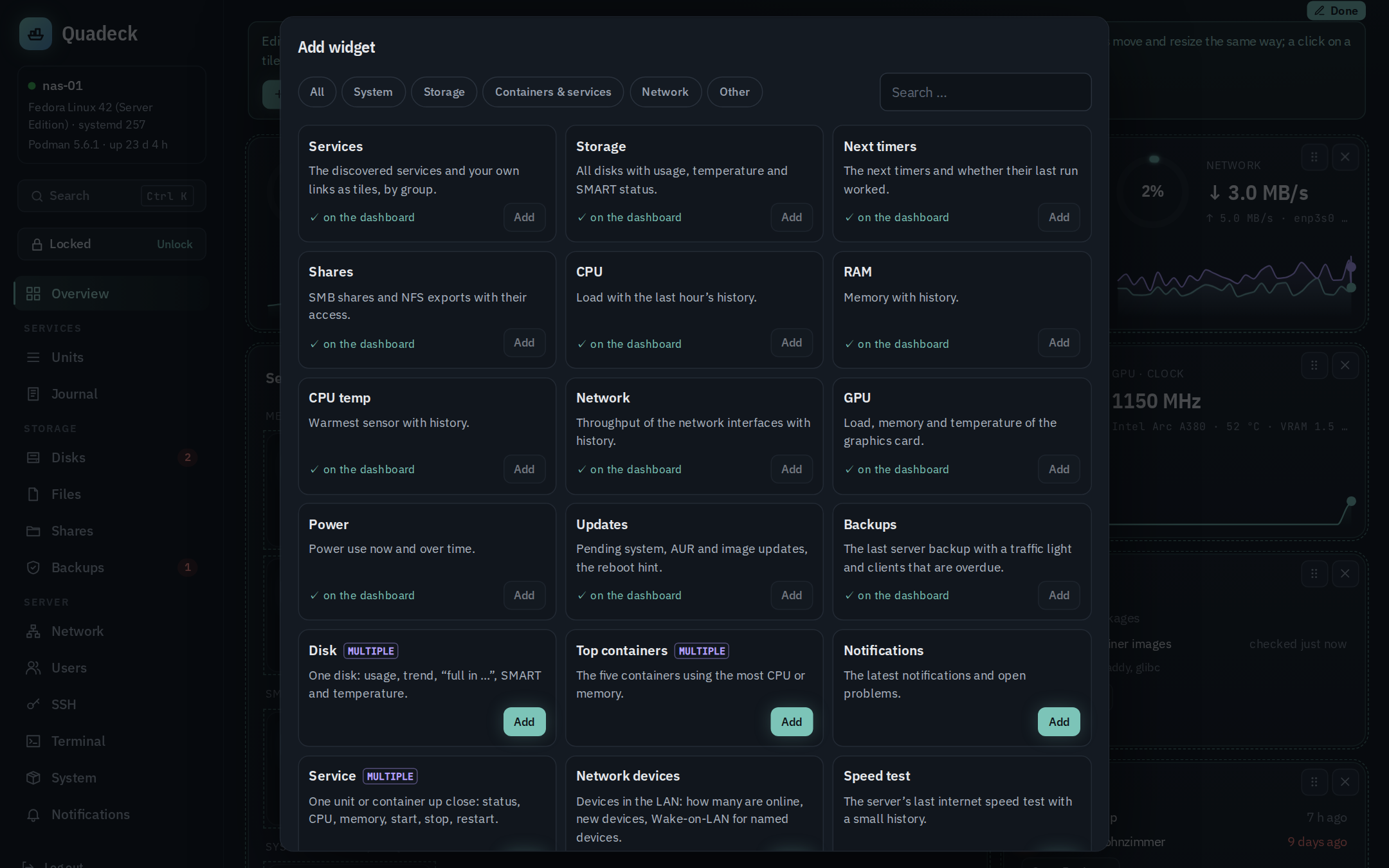
Add widget (in the edit bar and below the widgets) opens the catalog: every widget with what it shows, by category (system, storage, containers and services, network, other) and with a search. Built-in widgets that are already on the overview are marked; a removed one comes back from here. Widgets marked MULTIPLE can be added more than once, each with its own settings (⚙ in edit mode). A new widget lands below the others on every screen width; position and size are kept per width.
| Widget | Shows | |
|---|---|---|
| Updates | pending system, AUR and container image updates, the reboot hint, when it was last checked | |
| Backups | the last server backup with its result, clients of the backup target that are overdue | |
| Disk | one mounted file system: usage, 30-day trend and "full in …", SMART state, temperature (⚙: which mount point) | multiple |
| Top containers | the five running containers using the most memory or CPU (⚙: which) | multiple |
| Notifications | the last five notifications and how many problems are open | |
| Service | one systemd service up close: state, since when, CPU and memory of its container, start / stop / restart (after the unlock), its journal (⚙: which unit) | multiple |
| Network devices | how many devices are online, new devices, Wake for offline devices you gave a name | |
| Speed test | the server's last internet test (down, up, ping) with the last twelve as bars | |
| Logins | the last five SSH logins (open connections marked) and failed attempts | |
| Link group | your own bookmarks with a heading, up to 20; only http(s) addresses are accepted (⚙: edit) | multiple |
| Note | free text with a heading, up to 4000 characters; http(s) links become clickable, nothing else is interpreted | multiple |
A fresh install starts with Updates and Backups on the overview; an existing dashboard is not changed by an update of Quadeck, the new widgets wait in the catalog.
A note opens for writing when it is added; the pencil edits it later, also outside edit mode. Removing a note with text or a link group with links asks first. Widgets only change the dashboard, never the host, so they work in read-only mode too.
Command palette
Ctrl+K (⌘K) or Search in the sidebar: open services, jump to pages, restart or stop units (with the usual confirmation) and open their journal. It also switches the overview to edit mode (Edit the overview), sets the color theme (Color theme: Nord …) and the animation level (Animations: Off …). Typing filters across all of it.
Journal
The Journal page streams journalctl live: filter by unit (the units of the overview are
offered as chips), by priority (errors, warnings, everything) and by text. The journal link on a
unit, a tile or a failed unit opens the page already filtered.