Quadeck documentation
Quadeck is a dashboard for a Podman home server that runs Quadlets. It runs directly on the host as two systemd services (an unprivileged web app and a small root helper) and shows containers, units, disks, shares and the host itself, with the actions you need day to day. Also as a website with search: https://firsttris.github.io/quadeck/
| Installation | install script, binaries, commands, environment variables, services, updates, reverse proxy, uninstall |
| Overview and services | how services are discovered, labels, overrides, manual links, icons, health, layout editing, the widget catalog, metrics history, GPU, command palette |
| Units and Quadlets | units page, actions, journal, Quadlet editor, validation, history, templates, compose import, Podman settings |
| systemd editor and timers | unit files and overrides, form and text, verification, history, new units, timers, schedule builder, cron import |
| Updates and packages | package managers, AUR, reboot hints, jobs, installed packages, removal, container images, boot and reboot (systemd-boot) |
| Hardware | CPU, memory slots, GPUs, USB paths, sensors, PCIe and SATA links, warnings |
| Users | accounts, groups, passwords, lock, Samba password, keys, login history, lock-out guard |
| Disks and files | SMART verdicts and advice, history, self-tests, usage and trend per disk, energy saving, fstab configurator and its checks, file explorer with two panes and archives, data areas |
| Backups | restic: the target first, then what and when (folder browser, exclusions), schedule and retention, the password, browsing and restoring; the rest-server as backup target for clients |
| Shares | SMB shares, NFS exports, services, what is checked, what is never touched |
| SSH | keys, hardening, lock-out guard, logins, connecting a new device |
| Terminal | shell on the server and in containers in the browser, off by default, home network only, what is logged |
| Network | interfaces, ports, firewall verdicts, routes and DNS, reverse proxy (Caddy), speed test |
| Notifications | channels, rules, how spam is avoided, retries |
| Security | the two processes, unlock, authentication with password or passkey, hardening, data and secrets |
| Development | setup with demo data, checks, architecture, tests, releases |
How Quadeck works, in one minute
- Two processes.
quadeck.serviceis the web app, running as the system userquadeckwithout root.quadeck-helper.serviceis a root helper with a fixed list of actions, reachable only over a Unix socket that thequadeckgroup can open. Everything that changes the server goes through the helper. See Security. - Reading is free, writing needs an unlock. Looking at units, disks, packages or shares works
right after login. Starting, stopping, saving, installing or deleting anything first asks for the
password of a Linux administrator (root or a member of
wheel/sudo) and stays unlocked for 15 minutes. - systemd is the truth. A container that belongs to a Quadlet unit is controlled through
systemd, never behind its back. Quadeck reads systemd over D-Bus and the journal through the
systemd-journalgroup. - Zero config. Services, their URLs and icons are discovered from Caddy, Podman and the Quadlet files. Labels in the Quadlet file and overrides in the UI only refine what was found.
- Nothing is deleted silently. Config files Quadeck edits (
smb.conf,exports,sshddrop-ins, unit files, Quadlet files,/etc/fstab, the Caddyfile, boot entries) are checked with the respective tool before they are written, keep a backup or a history, and are rolled back when the tool refuses.
Which page does what
The navigation is grouped into Services, Storage and Server. On a phone it folds into a menu behind the button at the top left; the bar keeps search, a running job and the unlock countdown in reach.
On the home screen. Quadeck can be added to a phone's or tablet's home screen and then opens
like an app, with its own icon and without the browser's bars: on Android in Chrome's menu
Install app (or Add to home screen), on an iPhone or iPad in Safari's share menu Add to Home
Screen, on a computer with the install icon in the address bar. Chrome offers the install only
over HTTPS, so reach Quadeck through a reverse proxy with a domain (Installation);
over plain http:// it becomes a shortcut that opens in the browser. Quadeck still needs the
server: without a connection the app shows the browser's error page.
| Page | Group | Content |
|---|---|---|
| Hardware | host card in the sidebar | CPU, memory, GPUs, USB, sensors, PCIe/SATA links |
| Overview | gauges with history, failed units, services, storage, timers, shares | |
| Units | Services | services, timers and containers with actions; the Timers filter is the schedule editor; from here the Quadlet and systemd editors open |
| Journal | Services | Live: journalctl following, per unit and priority; Search the system: the whole journal by time, boot, kernel or logins, unit or program and full text |
| Disks | Storage | SMART verdicts, history, self-tests; mounting disks via /etc/fstab |
| Files | Storage | file explorer for the data areas |
| Shares | Storage | SMB and NFS |
| Network | Server | interfaces, ports, firewall, reverse proxy (Caddyfile), speed test |
| Users | Server | accounts, groups, passwords, Samba, keys |
| SSH | Server | keys, hardening, logins |
| System | Server | updates, installed packages, Podman settings, boot and reboot |
| Notifications | Server | channels and rules |
The UI is in German and English. It follows the browser's language; the switch at the bottom of the sidebar (and on the login page) overrides it and is remembered in a cookie. E-mails and push messages use the language last picked there. The documentation uses the English labels.
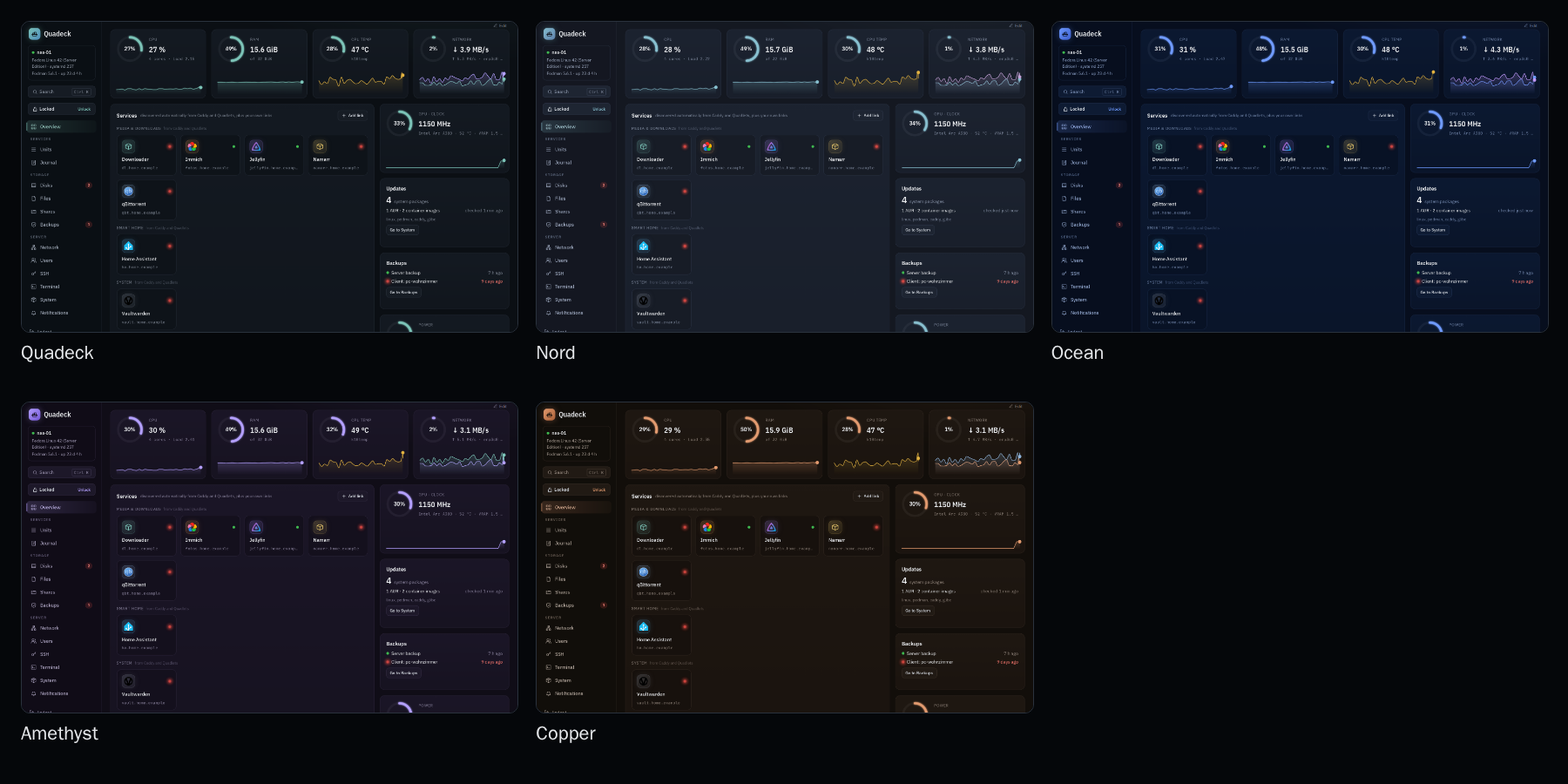
Color themes at the bottom of the sidebar (also in the command palette, "color theme") change the accent and the tint of the dark surfaces, per browser: Quadeck (teal, the default), Nord (frost blue on slate), Ocean (blue on navy), Amethyst (violet) and Copper (warm orange). Gauges, charts, buttons, the navigation and the logo follow. Ok, warning and error keep their green, yellow and red in every theme, and every theme is checked for readable contrast. The terminal stays black.
Animations at the bottom of the sidebar (also in the command palette) set how much moves, per browser, like in SnapRAID UI and the CCU add-on:
| Off | nothing moves; spinners still turn |
| Subtle (default) | the page fades in, the marker of the current page slides in, dialogs open softly, gauges and bars glide to new values, charts draw in; only warnings and errors pulse |
| Strong | everything rises in one after the other, the current page glows in the navigation and entries move on hover, widgets and tiles light up and lift on hover, bars shimmer, status lights breathe, a running job glows |
The login and setup page show the logo brought to life, a container ship being loaded: containers are lowered onto the deck one after the other, the ship rocks on the waves and the lights on the containers blink like running services; a wrong password shakes the message. It follows the color theme and stands still, fully loaded, when animations are off.
Without a choice, the system's reduce motion setting means Off. In the overview's edit mode widgets never move by themselves, so dragging and resizing stay precise.