Disks and files
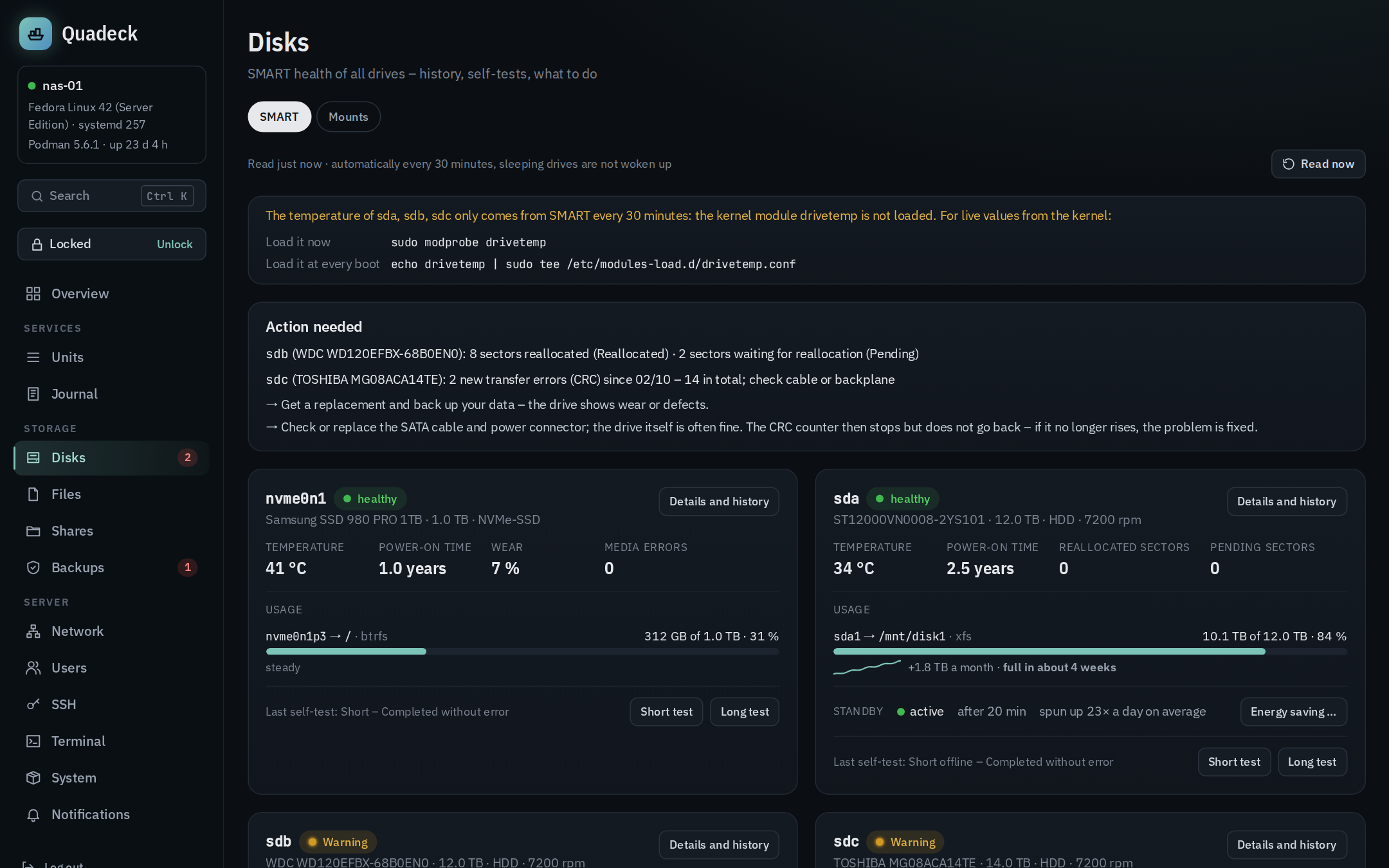
The Disks page has two tabs: SMART for the health of every drive and Mounts,
a configurator for /etc/fstab. Files in the navigation is a small file explorer for the data
areas.
SMART
Quadeck reads every drive with smartctl --json from smartmontools: every 30 minutes, on
Read now, and when the page opens if the last reading is older. Sleeping disks are not
woken up (-n standby); their last values stay until they spin up on their own.
Per disk
Model, serial, capacity, type (HDD, SSD, NVMe), temperature, power-on hours, wear level for SSDs, reallocated and pending sectors, uncorrectable and CRC errors, the result of the last self-test, and a verdict.
Usage
Each card also shows what is mounted from that disk: partition → mount point → file system, how full it is (the bar turns yellow at 85 %, red at 90 % or when it is full within two weeks) and at what pace it fills up – "+1.8 TB a month · full in about 4 weeks", with a small line of the last 30 days. A file system on RAID or LVM over several disks shows on each of them, "shared with sdb". A disk without a mounted partition links to Mounts; from 85 % there is a link to the folder in the file explorer.
The fill level comes from statfs of the mounted file systems, which only reads the kernel's
numbers: no disk access, sleeping disks stay asleep. Quadeck keeps one value per file system and
hour for 400 days; the forecast is a straight line through the last 30 days and appears after two
days of history. Below about 0.6 % a month the disk counts as "steady", and forecasts beyond ten
years are not shown. Fragmentation is not shown on purpose: on SSDs it doesn't matter, ext4 and
XFS keep it low by themselves, and measuring it would read the whole disk (and wake it).
Temperature sensor
SATA disks report their temperature to the kernel only with the drivetemp module. When a disk
has a SMART temperature but no kernel sensor, the page says so above the disks: with the two
commands to load the module now and at every boot when drivetemp is not loaded, or that the disk
does not report to the kernel at all (USB enclosures, RAID controllers) when it is. Until then the
overview shows the SMART value, read every 30 minutes.
The verdict
The assessment is the one from snapraid-ui:
| Level | When |
|---|---|
| critical | the drive reports itself as failing (FAIL), a pre-failure attribute is below its threshold now (PREFAIL), wear at 100 %, temperature at 60 °C or more |
| Warning | a pre-failure attribute was below its threshold in the past, entries in the drive's error log, reallocated, pending or uncorrectable sectors (attributes 5, 197, 198), reported uncorrectable read errors (187), CRC errors (199) that grew during the last 7 days, media errors on NVMe, wear at 80 % or more, temperature above 50 °C, a failed or aborted last self-test, SMART data not readable |
| healthy | nothing of the above |
Every finding comes with what to do: replace the disk (status, sectors, read errors, wear, failed test), check the cable (CRC errors and a filling error log are usually a cable, a port or a power loss, not the disk), cool it (temperature), check access (SMART not readable). Virtual drives and USB bridges without SMART are shown neutrally, not as a problem.
CRC errors (attribute 199, UDMA_CRC_Error_Count) count transfers between controller and disk
that arrived damaged and were sent again – no data is lost. The counter covers the whole life of
the disk and never goes back to zero, not after a new cable, a reboot or formatting. So Quadeck
compares it with its own history: if it grew during the last 7 days, the disk gets a warning
("5 new CRC errors since …, 14 in total"); an old count that no longer grows is only a grey note
under the disk. After swapping a cable, the counter staying where it is means the problem is
solved.
History
Temperature, the sector and error counters and the wear level are sampled hourly and kept for a year (daily maximums for ranges over 30 days). A rising counter is the real warning sign, a single reallocated sector that has been there for a year is not. The history opens per disk with 30, 90 or 365 days.
Self-tests
Short test (a few minutes) and Long test (hours, the whole surface) start through the helper and need the unlock. Progress and the test log are shown on the disk.
Energy saving (standby)
Every hard disk card has a Standby line: whether the disk is awake or asleep (hdparm -C, which
does not wake it), Quadeck's standby setting, and how often the disk spun up per day over the last
week. The rate comes from the SMART Start/Stop counter, which is now kept in the history too. SSDs
and NVMe disks manage their power themselves and have no such line.
Energy saving … opens a dialog per disk:
- Standby after: never, 10, 20 or 30 minutes, 1 or 2 hours (
hdparm -S). For data and media disks 20–30 minutes is a good value. A shorter time means more spin-ups, and every spin-up wears the motor and heads. Above 24 spin-ups a day the line turns yellow and the dialog suggests a longer time. - The disk's own power management (APM) (
hdparm -B): - let the disk decide: the default, nothing is set;
- save power (127): the disk may park its heads and spin down by itself;
- performance (254): it never spins down by itself, against constant head parking.
The current APM level is shown when the disk is awake. Reading it while the disk sleeps could
wake it.
- What keeps it awake? lists the programs with files open on the disk's mounts right now,
with their systemd unit. Whatever wakes a disk only briefly (media scans, logs, indexers) does not
always show up there.
- Not offered: the system disk (/, /boot, /var, /usr, /home), members of an md RAID (the
array decides), and disks without a serial number.
- USB enclosures often do not pass the standby command on. The dialog then points to hd-idle.
Saving needs the unlock. It writes one line per disk into
/etc/udev/rules.d/69-quadeck-power.rules, matched by the serial number, never by /dev/sdX,
with a history in /var/lib/quadeck-helper/power-history. Then it reloads udev and applies the
setting right away. The rule runs again whenever the disk appears, after a reboot or replugging.
Remove setting deletes the line and switches the disk's standby timer off (-S 0).
The standby time a disk uses cannot be read back from the disk. Quadeck shows what its own rule
says, and lists other places that also set standby (own udev rules with hdparm -S,
spindown_time in /etc/hdparm.conf, hd-idle) instead of overwriting them.
Without hdparm the page offers to install it.
On the overview
The storage card shows a SMART dot per disk; the sidebar badge counts disks with a finding. Both link here. SMART problems also go out as notifications.
Without smartmontools
The page shows an install button with the command for your distribution. Without SMART, the storage card still shows usage and the file explorer works.
Mounts (fstab)
Mounts shows which file systems /etc/fstab mounts where and adds, changes and removes
data disks. A broken fstab can stop the server in emergency mode at boot, so every change passes
several checks before the file is written.
The list
- Configured: every entry with its mount point, file system, usage, the device behind it
(path, label, model), whether it is mounted, and whether it would stop the boot when the disk
is missing (no
nofail). Options show their meaning on hover. Shares, NFS exports and Quadlet volumes below a mount point are named, so you see what depends on it. - System entries:
/,/boot,/boot/efi,/home, swap, pseudo file systems and subvolumes of the root file system are shown, never changed. - Not configured: file systems on the machine that are not in the file (RAID members, LUKS containers and swap are left out), with Add to fstab ….
Adding and changing
The dialog proposes a mount point (/mnt/<label>), names the device by UUID (stable when sdb
becomes sdc; label and PARTUUID can be chosen) and sets options for a data disk: nofail with a
10-second wait (x-systemd.device-timeout=10s), noatime, for btrfs compress=zstd, for NTFS,
exFAT and FAT owner and mask (uid, gid, umask, those file systems have no Linux permissions).
Switches with a sentence each cover automount on first access, read-only and nodev,nosuid; any
other option goes into the free field. The resulting fstab line is shown while you type, and the
fsck order is set to 2 for ext4 and 0 for file systems that are not checked at boot.
The checks
While typing and again before writing:
- Form: absolute mount point, not a system directory (
/etc,/usr,/var,/home,/boot, …), known options for the file system (unknown ones are a hint, the test mount decides), values where an option needs one, norowithrw, sensible fsck order. - Whole file: no mount point twice; protected lines stay exactly as they are and no new ones appear.
- Host: the device exists (
lsblk), carries the file system named in the entry, the driver or mount helper is installed (with the package to install if not), the mount point is not used by something else, and whether the directory is empty. findmnt --verifyon a copy of the new file.- systemd's fstab generator on the old and the new file (
SYSTEMD_FSTAB=<copy>): entries that end up inlocal-fs.target.requiresstop the boot when they fail. A change that adds such an entry needs an explicit confirmation that explains the consequence. - Test mount: the device is mounted once with exactly the chosen options in a private temporary
directory and unmounted again – before
/etc/fstabis touched. A wrong option or a damaged file system shows up here.
Writing
The confirmation shows the diff and the steps. Then: create the mount point if needed, write the
file atomically (previous version as /etc/fstab.quadeck-bak and in the history under
/var/lib/quadeck-helper/fstab-history), systemctl daemon-reload, and start the mount unit (or
reload it to remount with new options; changing source or mount point unmounts first). If any
step after writing fails, the previous file is written back and reloaded. Removing an entry
unmounts it first and refuses when it is busy. History shows earlier versions with a diff and
restores one through the same checks.
If the server does not boot anyway
In emergency mode, log in as root and restore the previous file:
File explorer
Files in the navigation (/files) is a small explorer for the data areas, meant for moving a download into the
media folder or cleaning up, not for administering the system.
Areas
/mnt, /srv, /media, /home, /data and mounted data file systems outside those, each with
its free space. QUADECK_FILE_ROOTS replaces the list (comma-separated). System directories
(/etc, /root, /boot, /usr, /var, /proc, /sys, /dev, /run, …) are never reachable,
and symlinks are resolved before the check, so a link cannot lead out of an area.
Working with files
Open folders, path bar, show or hide hidden files, sort by name, date or size. New folder (owned by the parent folder's owner), Rename, Copy / Cut / Paste, Delete, also with Ctrl+C/X/V, F7, Del and F2. Overwriting asks first; copying a folder into itself or deleting an area is refused.
Two panes
The Two panes switch puts two folders side by side, like a two-panel commander (Total or Double Commander): each pane has its own area, path and selection. The pane you click or move the focus into is the source (framed), the other one the target; Copy → and Move → between them follow that direction. The same works with the keyboard and the mouse:
| Key | Does |
|---|---|
| F5 / F6 | copy / move the selection to the other pane (inside the explorer F5 does not reload the page) |
| F7 | new folder |
| Del / F8 | delete |
| F2 | rename |
| drag a row onto the other pane | copy; hold Shift to move |
With one pane, Copy to … / Move to … in a row's ⋯ menu (or F5/F6) opens the second pane
as the target. Both folders are in the address (/files?path=…&right=…), so a reload or a
bookmark keeps them, and the browser remembers whether two panes were open. On a phone the panes
become two tabs, Left and Right.
Copy, move, delete, unpack and pack run as jobs with live output (cp -a --reflink=auto,
mv, rm -r --one-file-system), so a large folder blocks nothing and a restart of Quadeck does not
interrupt it. Conflicts and paths outside the areas are refused before the job starts, not in a
failing job. Every change needs the unlock. There is no trash: deleted is
deleted.
Archives
Unpack … in the ⋯ menu of an archive (.zip, .tar, .tar.gz/.tgz, .tar.bz2, .tar.xz,
.tar.zst) first reads its contents and shows the number of files, the unpacked size and the free
space at the target. By default it unpacks into a new folder named after the archive; Here and,
with two panes, Into the other pane are the alternatives. Existing entries are kept unless
Overwrite existing files is ticked.
Archives can be crafted, so Quadeck checks every entry before anything is written and refuses the whole archive when one is dangerous:
| Refused | Why |
|---|---|
absolute paths, paths with ../ |
they would write outside the target ("zip slip") |
| symlinks pointing outside the archive (also zip's, read from their content) | later entries could write through them |
| setuid/setgid bits, device files, FIFOs | they don't belong in a data area |
| a symlink in the target where the archive writes | unpacking would follow it |
| more data than free space | a full disk (or a zip bomb) |
The checks run again in the job right before unpacking. tar and unzip then run as the owner
of the target folder (setpriv), not as root, so even an archive that slipped through could only
write where that owner may; owners and permission bits from the archive are not taken over
(--no-same-owner --no-same-permissions). tar reads the archive through a pipe that root opens,
so this also works when the owner can't read the archive itself; unzip needs to read the file.
Pack … in the toolbar packs the selected entries of a folder as .zip or .tar.gz next to them
(also as their owner) – handy to download a whole folder. .zip needs zip/unzip; when they are
missing, the dialog offers to install them.
Opening files
A click on a file does what fits it: text opens in Quadeck's editor (below); photos, PDFs, audio and videos the browser can play (MP4, WebM, MP3, FLAC …) open in a new tab; everything else (archives, ISOs, MKV …) is downloaded. The ⋯ menu of every file offers the other ways that fit it: Open in the editor, Open in a new tab and Download.
Files are streamed, not loaded first, and the browser can ask for parts of them (HTTP range requests): a video starts right away and can jump to any point, even with many gigabytes over the LAN. Whether a video plays is up to the browser – MP4 with H.264 and WebM everywhere, MKV often only in Chrome, HEVC rarely. Quadeck does not convert anything; for that there is Jellyfin.
What the browser shows gets headers that keep it from running anything on Quadeck's address
(X-Content-Type-Options: nosniff, a sandboxing Content-Security-Policy). HTML and SVG files are
never shown as pages – they open as text.
Text files
A click on a text file opens it in the editor: scripts, patches, notes, configuration (.sh,
.patch, .txt, .md, .yml, .conf, .env, Dockerfile …). Files without a known ending
are checked by their first bytes – no NUL byte and valid UTF-8 means text; anything else (and
anything over 2 MB) is not opened. Size, owner, mode and the date are shown above the text.
Reading is free; Next shows the diff and Save needs the unlock. The file is written next to the original and renamed over it, so it is never half written; owner, mode and Windows line endings (CRLF) stay as they were. If the file changed since it was opened, saving is refused.
Keys and credentials are only shown (or downloaded) after unlocking: everything in .ssh, .gnupg, .docker,
.aws, .kube and similar folders, .env files, id_* keys, *.key, *.pem, .netrc,
.pgpass and the like.