Using the interface
This page walks you through the SnapRAID UI: finding your way around, reading the dashboard, running SnapRAID commands and following their output.
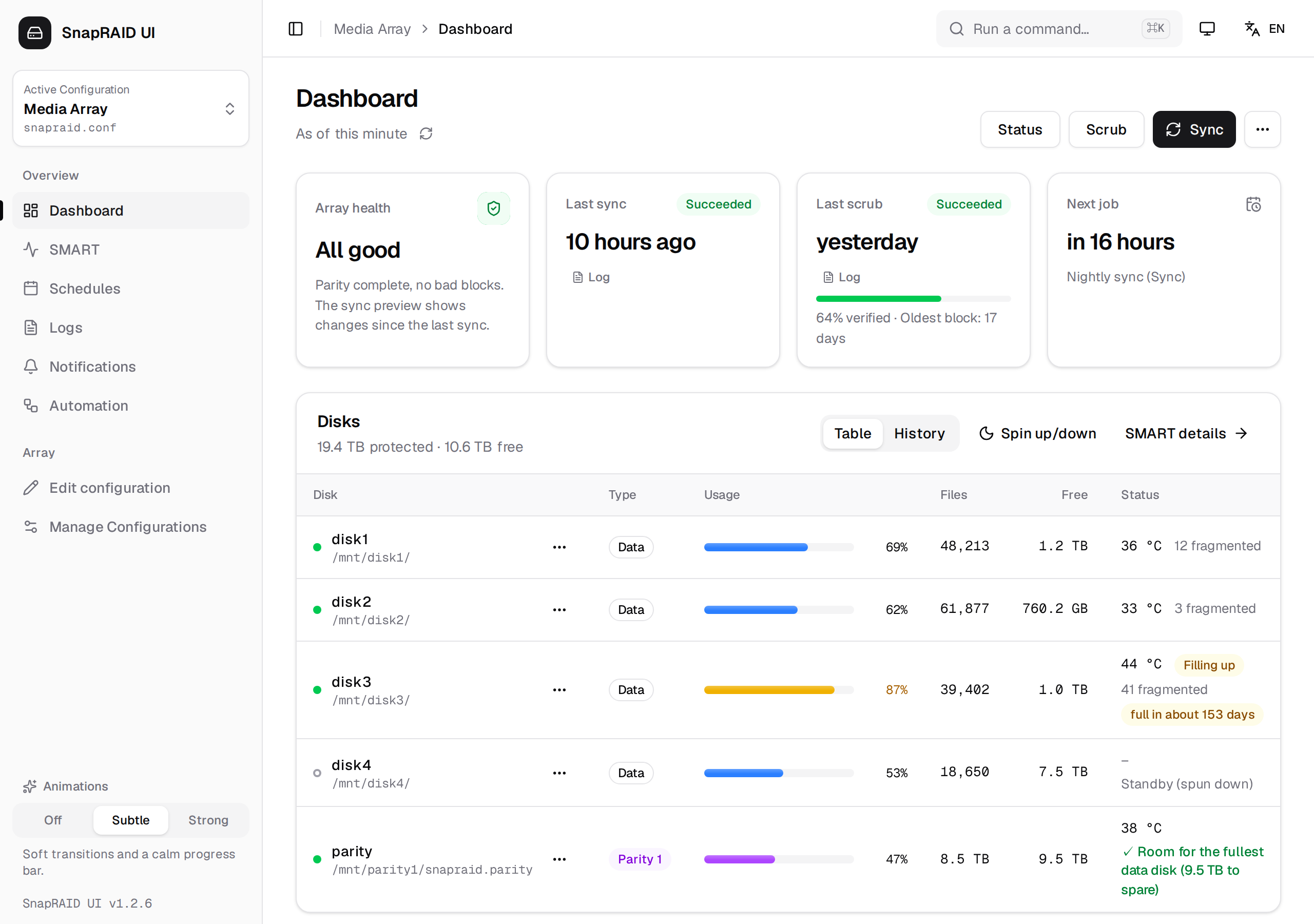
- Layout
- Command palette
- Dashboard
- Running commands
- Recover files
- Live output and progress
- Safety stops
- Theme, language and animations
Layout
Sidebar
The sidebar on the left holds everything that is not specific to one page:
| Element | What it does |
|---|---|
| Active Configuration | Switches the SnapRAID configuration that all pages work on. Only enabled configurations are listed. The dropdown also has Edit configuration and Manage Configurations. You can't switch while a job is running. |
| Overview | Links to the pages Dashboard, Recover files, SMART, Schedules, Logs, Notifications and Automation. |
| Array | Edit configuration opens the config editor for the active configuration, Manage Configurations lets you add, create, rename or enable configurations. See Disks & configurations. |
| Animations | Off, Subtle or Strong, see below. |
| User box | Shown only when the login is enabled: your username and a Log out button. See Security. |
Your browser remembers the selected configuration and whether the sidebar is open. Below 1024 px (phones and tablets) the sidebar is hidden and opens over the page from the button at the top left; the version is shown at its bottom.
If no configuration is set up yet (or all are disabled), the dashboard shows Welcome to SnapRAID UI with a button to Manage Configurations.
Header
The bar at the top of every page shows, from left to right:
- Toggle sidebar (Ctrl/⌘+B)
- where you are: the name of the active configuration and the current page
- Run a command…, which opens the command palette (Ctrl/⌘+K)
- while a job runs: a chip such as Sync running with its progress in percent; click it to go back to the dashboard
- the Theme menu and the language menu (Switch language)
On a phone
Below a width of 768 px the sidebar turns into a panel that slides in from the left; open it with the sidebar button in the header. On smaller screens Run a command… is a search icon. The dashboard table scrolls sideways, and on the Logs page the list and the selected log take turns instead of sitting side by side.
Command palette
Press Ctrl+K (⌘+K on a Mac) or click Run a command… in the header. Type to filter, pick an entry with the arrow keys and Enter.
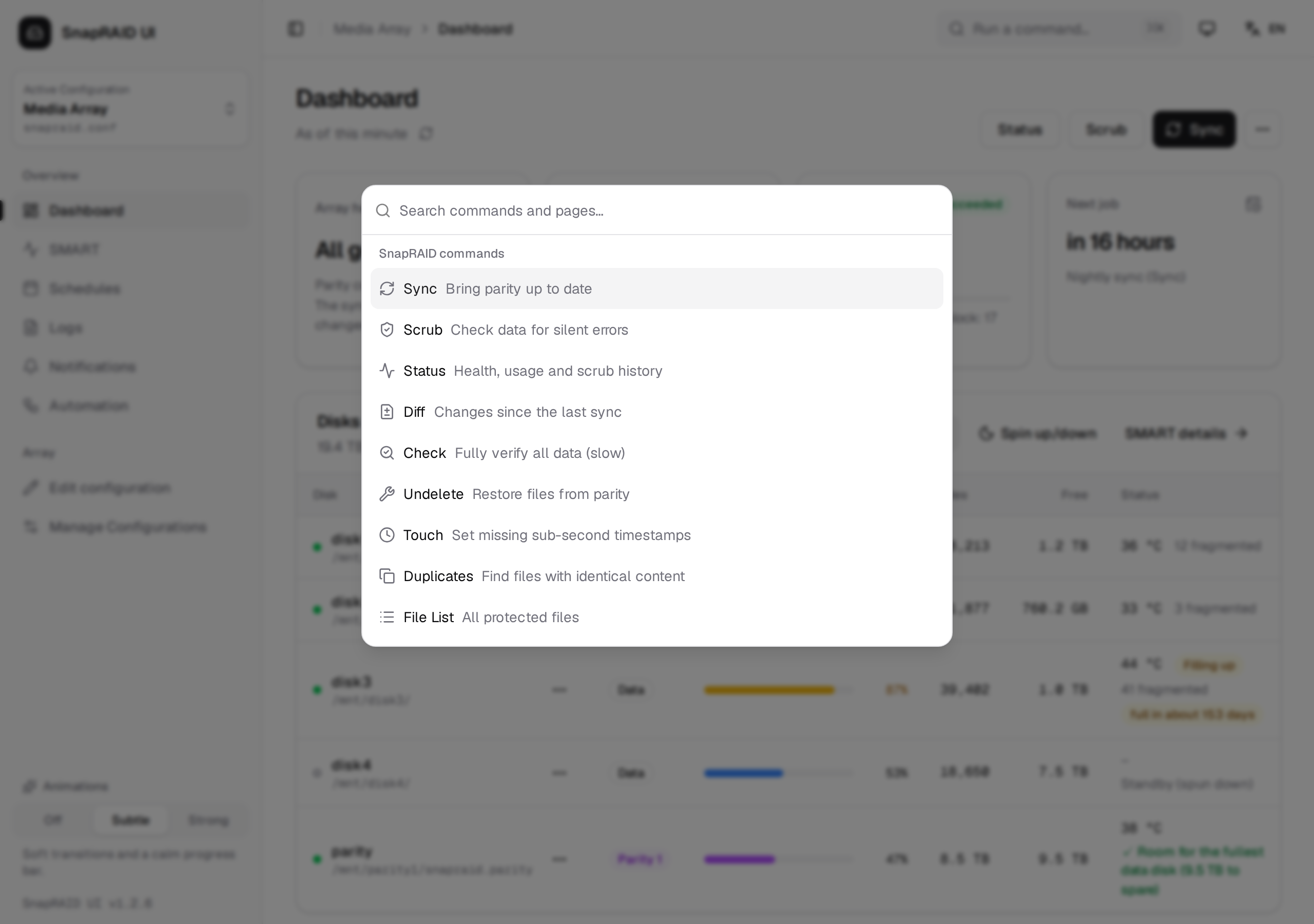
| Group | Entries |
|---|---|
| SnapRAID commands | Sync, Scrub, Status, Diff, Check, Undelete, Touch, Duplicates, File List, Devices. Picking one opens the dashboard and starts the command there, including its dialog (for example the sync preview). Disabled while a job is running. |
| Navigation | The five pages from the sidebar |
| Configuration | Switch to "…" for every other enabled configuration, and Manage Configurations |
| Settings | Theme: Light / Dark / System and Animations: Off / Subtle / Strong |
Pool is only available in the dashboard's More commands menu.
Dashboard
The dashboard shows the state of the active configuration. Under the page title, As of … tells you how old the shown status is; the refresh button next to it runs snapraid status again.
[!NOTE] The last status is cached in your browser for up to 24 hours. After a reload, or while a job holds SnapRAID's lock, the dashboard shows that cached status instead of an empty page.
Summary cards
| Card | Shows |
|---|---|
| Array health | The overall state, see the table below |
| Last sync | When the last sync of this configuration ran, its result (Succeeded, With warnings, Failed, Aborted, Incomplete) and a Log link to its log. Marked Overdue after 7 days. While a sync runs: Running now. |
| Last scrub | The same for scrub, marked Overdue after 30 days. Below it, the scrub coverage: how much of the array was verified since its last sync (N% verified) and the age of the oldest verified block (Oldest block: N days). |
| Next job | The next enabled schedule for this configuration, or No schedule with a link to Set up a schedule |
The last sync and scrub are read from the logs. If no log is left (for example after cleaning up old logs), the card shows No log instead of a date.
The Array health card can show these states, the most urgent one wins:
| State | Meaning |
|---|---|
| All good | Parity complete, no bad blocks, sync and scrub recent enough |
| Sync overdue, Scrub overdue, Sync and scrub overdue | The last sync is more than 7 days old, the last scrub more than 30 days, or some blocks were last verified more than 120 days ago. Old blocks are not flagged while recent scrubs (successful, at most 30 days old) are working through them; the scrub card then says Catching up: each scrub verifies the oldest blocks first. |
| Disk not available | A data disk's directory is missing or empty although SnapRAID knows files on it, or a parity file is gone. The disk is most likely not mounted. Scheduled jobs are skipped until it is back, so no sync removes its files from parity |
| Disk failing | SMART rates a disk as critical, for example a failing pre-failure attribute or a high failure probability. See SMART & disk health |
| Disk changed | A disk is on another filesystem than at the last sync (its UUID changed). Expected after replacing a disk, the next sync records the new one; otherwise check that the right disk is mounted |
| Sync incomplete | Blocks without parity (an interrupted sync), or the last sync did not succeed |
| Errors found | SnapRAID reports bad blocks or another error |
| Job running | SnapRAID is busy; the status is updated when the job has finished |
| Status unknown | The status could not be read, for example because no sync has run yet |
Notices and suggested actions
When there is something to do, a notice above the cards offers the matching action:
- Disk not available or Disk changed: one line per affected disk, e.g. d3: /mnt/disk3/ is empty, but SnapRAID knows 1,204 files on it. The disk is probably not mounted.
- Disk failing: the disks SMART rates as critical, with a link to the SMART details.
- Overdue sync or scrub: Start sync / Start scrub, and Set up a schedule if no enabled schedule scrubs this configuration.
- Sync incomplete: Run sync again and a link to the log of the failed sync.
- Bad blocks: Repair and verify restores the bad blocks from parity (
fix -e) after a confirmation, and then checks them again (scrub -p bad), which clears them once they are good. The scrub only follows a successful repair, and only if no other job started in between. Verify only (scrub -p bad) runs the check alone, e.g. after a repair done by hand. - Files without sub-second timestamps: Run touch, so SnapRAID can reliably detect moved and copied files (
snapraid touch).
Disks
The Disks card lists every data and parity disk of the configuration. The header line sums up the array (… protected · … free), and SMART details opens the SMART page.
| Column | Content |
|---|---|
| Disk | Name and path from the config. A dot shows the power state: green for Active, light green for Idle, an empty ring for Standby (spun down). |
| Type | Data or Parity 1, Parity 2, … |
| Usage | Fill level of the filesystem. Yellow from 85 % (Filling up), red from 95 % (Almost full). Parity disks use a purple bar, because a parity file fills its disk by design. |
| Files | Number of files on a data disk; size of the parity file on a parity disk. Left out when the card is narrow (tablets), so Status stays in view |
| Free | Free space; hover for the total size |
| Status | The temperature from SMART, with a small chart of the last 30 SMART reads (hover for the range): yellow from 45 °C, red from 50 °C. Then notes such as fragmented files, wasted space, the estimated fill-up date (full in about N days) and standby. A disk that is not available is marked Missing or Not mounted?, one on another filesystem Other filesystem, and one SMART rates as critical SMART critical |
The power state is checked once a minute in a way that does not wake sleeping disks, and not at all while a job is running. Some controllers can't report it; the dot is then left out.
The ⋯ menu next to a disk spins it up (snapraid up -d <disk>) or down (snapraid down -d <disk>), Spin up/down in the header does the same for all disks of the array. Spinning up all disks before a long job saves the wait for each disk; spinning one down helps when you know it will not be used for a while. Both are refused while a job runs. If the disk can't be controlled, for example without smartctl or behind some USB bridges, the message SnapRAID gave is shown. For spinning down automatically, see Automation.
For parity disks the Status column checks whether the parity can still grow as large as the fullest data disk, which SnapRAID needs for a sync:
| Note | Meaning |
|---|---|
| Room for the fullest data disk (… to spare) | Everything fine |
| Tight: only … left beyond the fullest data disk | Less than 5 % of the fullest disk's used space is left |
| Too small: parity can grow to …, but … uses …. Sync will fail. | The parity disk is too small; use a larger one or add a parity level |
| Parity disk not reachable | The parity path could not be read |
| Parity file not created yet | No sync has created the parity file so far |
Once at least two days of usage are recorded, a History tab next to Table shows how much protected data you had over time and how fast free space shrinks (last 90 days). A disk gets the full in about N days badge when the trend says it fills up within a year; within 60 days the badge turns red. How the history is recorded and the forecast is calculated is explained in SMART & disk health.
Running commands
The buttons at the top right of the dashboard start the commands: Status, Scrub and Sync, plus the More commands menu (⋯) with the rest:
| Group | Commands |
|---|---|
| Information (read-only, changes nothing) | Diff, File List, Duplicates, Devices |
| Maintenance | Check, Touch, Pool |
| Recovery | Undelete |
The Sync button turns green when a sync is due. Only one SnapRAID job can run at a time: while one is running, all command buttons are disabled, on every open browser tab.
Command reference
| Command | What happens | SnapRAID call |
|---|---|---|
| Sync | Opens Prepare sync, see Sync | sync, sync -h |
| Scrub | Opens Start scrub with a choice of plans, see Scrub | scrub, scrub -p … |
| Status | Opens Integrity & scrub, see Status | status |
| Diff | Opens the Diff Report: new, modified, deleted, moved, copied and restored files since the last sync | diff |
| Check | Opens Verify data, see Check | check, check -a, check -d … |
| Undelete | Opens Undelete Files, see Undelete | fix -m, fix -f … |
| Touch | Starts right away: gives files without a sub-second timestamp one | touch |
| Pool | Starts right away: rebuilds the links in the pool directory. Needs a pool directory in the config, see Disks & configurations. |
pool |
| Duplicates | Lists files with identical content. Uses the hashes stored at the last sync, no file is read; files added since then are not included. | dup |
| File List | Lists all protected files with size, date and time | list |
| Devices | Shows which device and partition each disk maps to | devices |
The report dialogs (Diff, File List, Duplicates, Check Report) have a Filter by path… field. Status, Diff, File List, Duplicates and Devices only read data: their result opens in a dialog and they don't write a log. Sync, scrub, check, undelete, touch and pool run as jobs with live output and a log entry.
Sync
Before a sync, Prepare sync runs a diff and shows what will be written to parity: the number of new, modified, moved, copied, restored and deleted files.
- If files were deleted, a red warning lists them (the first 20, then … and N more) and the start button turns red. After the sync they can no longer be restored from parity. If that was unintended (for example a disk is not mounted), cancel and bring them back with Undelete.
- If a previous sync did not finish, a notice says so; the new sync continues where the old one stopped.
- If the diff fails, the button reads Sync anyway.
- Pre-hash (
-h) reads new data twice and verifies it before computing parity, so faulty RAM or cabling can't slip damaged data into the parity. It takes longer. Your browser remembers the choice.
Scrub
Scrub reads data and parity and compares them with the stored checksums to find silent errors (bit rot). Start scrub offers these plans and shows the resulting command line:
| Plan | Arguments | Checks |
|---|---|---|
| Default | (none) | SnapRAID's default: about 8 % of the array, only blocks not checked for at least 10 days |
| Custom amount | -p <percent> -o <days> |
Amount (%) (1–100) of the array, blocks Older than (days) (0 or more) |
| New blocks only | -p new |
Blocks that were synced but never checked |
| Bad blocks only | -p bad |
Blocks marked as bad, e.g. after a repair. Preselected when the array has bad blocks. |
| Full | -p full |
The whole array. Can take many hours. |
Regular scrubs are best run by a schedule, see Scheduling.
Status
Integrity & scrub shows the details of snapraid status:
- findings with what to do, most severe first (bad blocks, blocks without parity, changes not synced yet, old blocks), or No problems found
- Oldest block checked, Median, Last checked, Checked since sync, Bad blocks and Blocks without parity
- Scrub age of all blocks: a chart of how many blocks were last scrubbed or synced how many days ago; bars older than 120 days are orange
- Output of snapraid status, the raw output, folded away
Check
Verify data reads the files and compares them with the hashes stored at the last sync. Nothing is changed.
- Files only (faster) (
-a, the default) verifies data without reading parity. - Files and parity also reads the parity, so it tells which errors a fix can repair. It takes considerably longer.
- Under Disks you can limit the check to some data disks (
-d <disk>for each). With all disks selected, no-dis passed.
The check runs as a job with progress and can be aborted. When it has finished, the result message has a Show report button that opens the Check Report with the files checked, errors and blocks to rehash.
Undelete
Undelete Files restores deleted files from parity (snapraid fix). Choose a Restore Mode:
| Mode | SnapRAID call |
|---|---|
| Restore All Missing Files | fix -m |
| Restore Missing in Directory | fix -m -f DIR/ |
| Restore Specific File/Directory | fix -f FILE |
For the last two, enter a path or use Browse Files. With several data disks, Browse from Data Disk picks the disk to browse. An absolute path below a data disk is converted to the path relative to that disk, which is what SnapRAID expects.
Under Advanced Options (for disk recovery), Disk Filter (Optional) limits the fix to one disk (-d, e.g. d1 or parity). To restore a whole failed disk, use the replacement wizard instead, see Disks & configurations.
Recover files
Until the next sync, the parity still holds every file as it was at the last sync. Recover files in the sidebar lists what changed since then, from snapraid diff, and brings it back:
| Tab | Files | What Restore does |
|---|---|---|
| Deleted | Removed since the last sync, deliberately, by mistake, or because a disk is not mounted | Recreates them with their content and time of the last sync |
| Changed | Same name, other content since the last sync, e.g. encrypted by ransomware or overwritten by mistake | Puts back the content of the last sync. The current content is replaced and lost, the confirmation says so |
Tick the files, or Select all shown files after narrowing the list with the search (part of the path, or the exact disk name such as d1), then Restore N files. SnapRAID runs fix -d <disk> -f /<path>…, one run per disk, so a file with the same path on another disk is left alone. Wildcard characters in file names (*, ?, [) are matched literally. Up to 1000 files at once.
Restored files disappear from the list. A file restored in place can still show up as changed in Diff until the next sync: SnapRAID sometimes keeps its new modification time to avoid mixing it up with another file. Its content is the one of the last sync, and the next sync just reads it again.
When a sync schedule of this configuration is enabled, a notice says when it runs next. After that sync, the files listed here can no longer be restored, so recover them first, or skip the next run. Files without a disk in the diff can't be restored by path, use Undelete.
[!TIP] After ransomware, do not sync. Stop the schedules (or Skip next run), remove the cause, then restore the Changed files here. The sync guard for changed files keeps a scheduled sync from overwriting their parity in the meantime.
Live output and progress
While a job runs, a card at the top of the dashboard shows Sync running (or the respective command) and an Abort button. For sync, scrub, check and fix it also shows a progress bar with percent, MB processed, speed in MB/s and the remaining time.
Abort asks for confirmation, then stops SnapRAID the way Ctrl+C would: it stops at the next block and saves its progress. The card shows Aborting – SnapRAID is saving its state… until the process has exited.
The Output card shows SnapRAID's output as it arrives:
- It follows new output automatically; scroll up to read and it stops following until you scroll back to the bottom.
- Copy, Download (as
snapraid-<command>-<time>.log), Clear and Collapse/Expand. - After a successful run it folds away; after a failed run it stays open so you can read what went wrong.
When a job ends, a message such as "Sync" finished successfully or "Sync" failed (exit code 1) appears. For sync, scrub, fix and check started by hand you can also get a notification, see Notifications.
Jobs run on the server, not in your browser. You can close the tab or reload the page; when you come back, the dashboard reconnects to the running job and shows its output so far. Jobs started by a schedule or in another tab show up the same way, and the dashboard switches to the configuration the job belongs to. The full output of every job is kept in its log.
Safety stops
SnapRAID refuses to run when the situation looks like data loss, and names a --force-* option that would run it anyway. The dashboard recognises these stops, explains them and offers a confirmed retry. The notice appears for the job you just ran and also for the last sync or scrub found in the logs, for example one started by a schedule overnight.
| Notice | Typical cause | Retry option |
|---|---|---|
| Stopped for safety: files suddenly have zero size | A crash truncated files to 0 bytes. Running now would store the empty files in parity. | --force-zero |
| Stopped for safety: all files of a disk are missing | The disk is not mounted, or mounted at another path. Running now would drop its files from parity. | --force-empty |
| Stopped for safety: several disks have a new UUID | Disks were replaced, or mount points got mixed up | --force-uuid |
[!WARNING] Check the cause first: look at the files named in the output, check your mounts. Use the button (Sync anyway / Scrub anyway) only when the situation is intended, for example when a disk is really empty on purpose. The safety check is skipped for that one run only.
Theme, language and animations
These settings are stored in your browser, so each device and browser can have its own.
| Setting | Where | Options |
|---|---|---|
| Theme | Theme menu in the header, or the command palette | Light, Dark, System (default, follows your operating system, also when it changes) |
| Language | Language menu in the header (shows the current code, e.g. EN) |
English, German, Italian. Without a choice, the browser language is used, falling back to English. |
| Animations | Animations in the sidebar, or the command palette | Off (nothing moves), Subtle (soft transitions, a calm progress bar), Strong (glow, stripes, fade-ins, hover effects). Without a choice: Subtle, or Off if your system asks to reduce motion. |
Notifications don't follow the UI language; they have their own language setting, see Notifications.