Scheduling
The built-in scheduler runs SnapRAID commands on a cron schedule, so you don't need a crontab on the host. Open Schedules in the sidebar (page title Scheduled Jobs) to create and manage them.
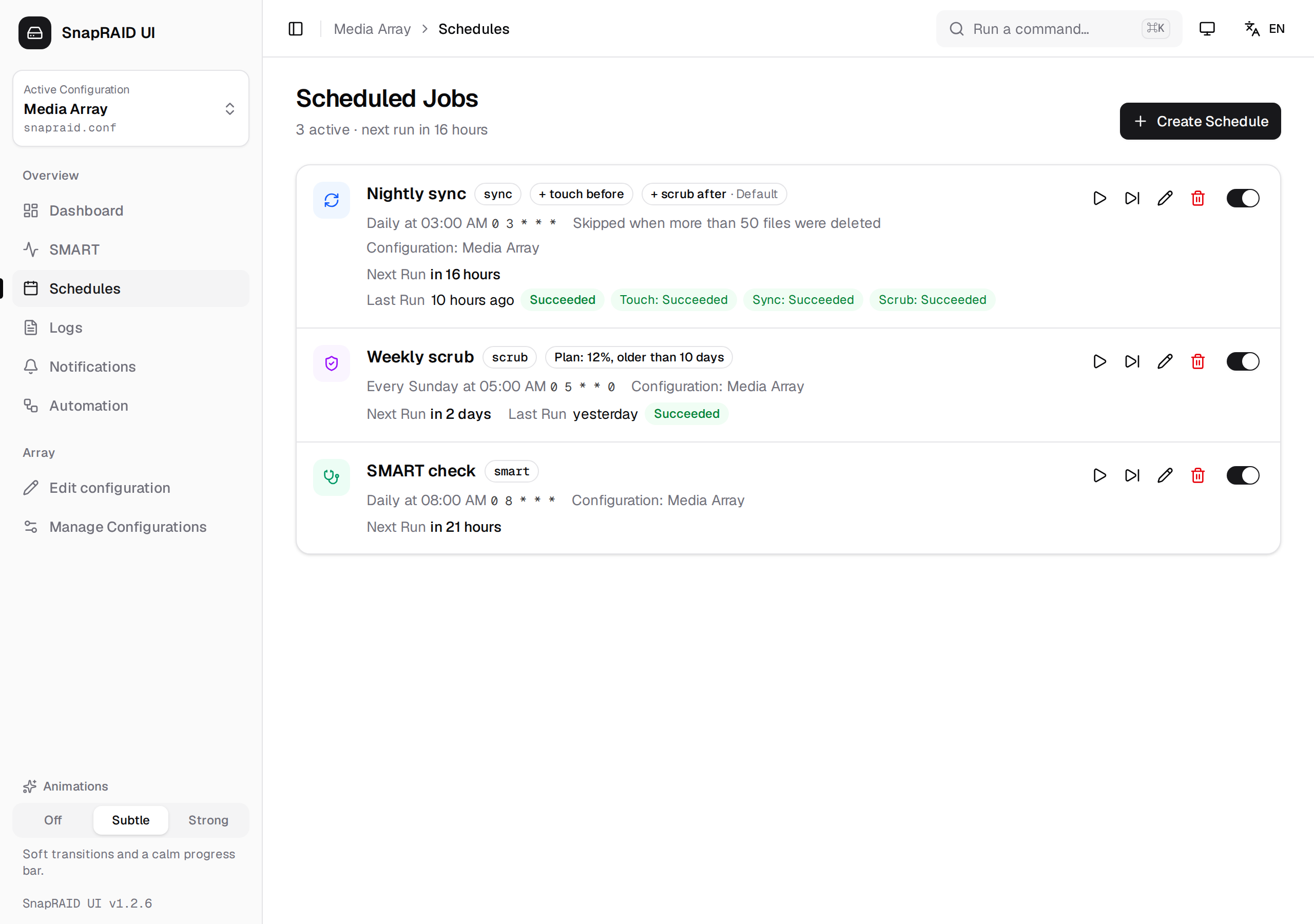
Creating a schedule
Click Create Schedule and fill in the form:
| Field | Description |
|---|---|
| Name | Any label, e.g. "Nightly sync". It is also used in notifications. |
| Command | sync, scrub, status, diff, check or smart. |
| Configuration | The SnapRAID config the job runs against. |
| Schedule | When the job runs, see Choosing when it runs. |
| Enabled | Switch it off to keep the schedule without running it. |
Depending on the command, more options appear: a scrub plan for scrub, and the sync guard and the nightly routine for sync.
[!TIP] A good starting point for most arrays: - a daily
syncwith Run touch first and Scrub afterwards (the defaults for a new sync schedule), - a dailysmartjob, so you get SMART warnings and a SMART history.
Choosing when it runs
The Schedule section has three modes:
Quick presets
| Preset | Cron expression |
|---|---|
| Daily 2 AM | 0 2 * * * |
| Weekly Sunday | 0 2 * * 0 (Sunday, 2 AM) |
| Monthly 1st | 0 2 1 * * (1st of the month, 2 AM) |
| Every 6 hours | 0 */6 * * * |
Custom lets you pick a Frequency:
- Every N hours: every 1–23 hours, at a chosen minute.
- Daily, Weekly (with Day of week) or Monthly (with Day of month (1-31)): at a chosen hour and minute. Every hour and Every N minutes replace the fixed hour or minute.
Cron expression takes a raw five-field cron expression: minute hour day month weekday, for example 30 3 * * 1-5 for 3:30 AM on weekdays. Weekdays count from Sunday = 0.
In the first two modes the resulting cron expression is shown below the picker. Switching to Cron expression starts from that expression, so you can fine-tune it. An invalid expression is rejected when you save.
When you edit an existing schedule, the form opens on the matching preset, or in Cron expression mode for anything else, so saving other fields never changes when it runs.
[!NOTE] Times are evaluated in the local time zone of the backend process, i.e. the container's time zone.
The nightly sync routine
A sync schedule can run more commands in the same run, under Nightly routine:
| Option | Default for new schedules | What it does |
|---|---|---|
| Run touch first | on | Runs snapraid touch before the sync. It gives files without sub-second timestamps one, so SnapRAID recognizes moved and copied files. File dates stay as they are. |
| Pre-hash | off | Runs the sync with -h: new data is read twice and verified before parity is computed, so faulty RAM or cabling cannot slip damaged data into the parity. Takes longer. |
| Scrub afterwards | on, plan Default | Runs snapraid scrub right after the sync, while the parity is up to date. You can pick Default, Custom amount or New blocks only as plan. |
Each step only runs after the previous one succeeded (finished OK or with warnings). If a step fails, the remaining steps are skipped and the notification lists them as "not run".
If you start a job manually in the UI between two steps, the scheduler does not start the next step, because SnapRAID can't run twice at the same time. That step is recorded as failed ("Another job started before this step").
Sync guard
If a data disk is missing, not mounted or suddenly empty, an unattended sync would remove its files from the parity, which is exactly what you need to recover them. Ransomware does the same in another way: it encrypts files in place, and the next sync would replace their parity with that of the encrypted files. The sync guard protects against both.
With Skip sync when too many files were deleted or Skip sync when too many files were changed switched on (both are the default for new sync schedules), the scheduler first runs snapraid diff. The sync is skipped when:
diffreports more deleted files than Max. deleted files (default 50),diffreports more updated files than Max. changed files (default 100, assync_threshold_updatesof snapraid-daemon), ordiffitself fails.
After a skip for changed files, open a few of the changed files (Diff on the dashboard lists them). If they are unreadable, do not sync: restore them with Undelete (fix) from the parity, which still holds the old content. If you changed them yourself, for example by re-tagging a music collection, start the sync manually.
Schedules created before this check have no limit for changed files; edit the schedule to switch it on.
The schedule row then shows Skipped with the reason, and a A scheduled job was skipped notification is sent. Check with Diff on the dashboard whether a disk is missing. If the deletions are intended, start the sync manually.
The row of a sync schedule shows the current settings, e.g. "Skipped when more than 50 files were deleted" and "Skipped when more than 100 files were changed", or No protection against deletions when that guard is off.
[!TIP] Set the limit above what you delete on a normal day, but far below the number of files on your smallest data disk.
Scrub plans
A scrub schedule (and Scrub afterwards) runs one of these plans:
| Plan | SnapRAID arguments | What it checks |
|---|---|---|
| Default | (none) | About 8% of the array, only blocks not checked for at least 10 days. |
| Custom amount | -p <percent> -o <days> |
Amount (%) (1–100) of the array, only blocks older than Older than (days). |
| New blocks only | -p new |
Only blocks that were synced but never checked. |
| Full | -p full |
The whole array. Can take many hours. Only for scrub schedules, not for Scrub afterwards. |
Bad blocks only (-p bad) is not offered for schedules. You run it manually after a repair, see Usage.
The schedule list
Each row shows:
- name, command and badges for the routine (+ touch before, Pre-hash, + scrub after · plan) or the scrub plan (Plan: …),
- the schedule in plain words (e.g. "Daily at 02:00") next to the cron expression,
- the sync guard setting and the configuration,
- Next Run (enabled schedules only) and Last Run with its result: Succeeded, With warnings, Failed, Aborted, Incomplete or Skipped. A routine also shows the result of each step, e.g. "Sync: Succeeded", "Scrub: Failed".
The header shows how many schedules are active and when the next one runs.
Use the pencil to edit, the bin to delete (after a confirmation), and the switch to enable or disable a schedule. A disabled schedule stays saved but never runs.
The skip button (Skip next run) leaves out the next timed run once, for example while you move files around or a disk is out for repair. The row shows Next run skipped; click the button again (Run next time again) to take it back. When the time comes, the run is recorded as Skipped with "Skipped once, as asked.", no notification is sent, and the schedule runs normally afterwards. Run now is not affected by it.
The play button (Run now) starts a schedule once, right away, exactly as at its time: the same steps, the sync guard, the checks for missing disks, the Docker pause and the notifications. It works for disabled schedules too, so you can try a routine before you enable it. It is greyed out while a job is running.
Every command of a scheduled run writes its own log, which you find under Logs. While a scheduled job runs, its output is sent to the live output like any other job.
When a schedule is skipped
A scheduled run does not start, and is recorded as Skipped, in these cases (checked in this order):
| Reason | Shown as |
|---|---|
| Another job (manual or scheduled) is already running | Another job was running. |
| A disk of this configuration is being replaced with the replacement wizard | A disk is being replaced, scheduled jobs are paused. |
A data disk is missing or empty, or a parity file is gone (sync, scrub, touch, check and fix only) |
"d3 missing or empty, probably not mounted. …" |
| The sync guard stopped a sync | "… deleted files, more than allowed …", "… changed files, more than allowed …" or "Diff before sync failed: …" |
| Skip next run was set | Skipped once, as asked. (no notification) |
The disk check reads snapraid status, which only reads the content file and does not touch the disks. A disk counts as missing when its directory does not exist, or is empty (apart from lost+found) while the content file lists files on it. A disk on another filesystem than at the last sync is only flagged on the dashboard, it does not stop the schedule: that is expected after replacing a disk, and the next sync records the new filesystem.
Skipped runs are not queued or retried. The schedule simply runs again at its next time. Each skip, except one you asked for, sends a A scheduled job was skipped notification, if that event is enabled under Notifications.
Scheduled jobs of a configuration stay paused from the start of a disk replacement until the wizard's final sync has succeeded. Schedules of other configurations keep running.
While a scheduled job runs, you can't start another command in the UI. The UI reports that a job is already running.
Scheduled SMART checks
A smart schedule reads the SMART data of all disks of the configuration. Besides the usual log, each run:
- adds a point to the SMART history,
- updates the CRC baseline,
- sends a SMART warning for new or changed problems.
SMART warnings are only sent by scheduled smart runs, not when you open the SMART page.
Where schedules are stored
Schedules are kept in schedules.json in the data directory (see Configuration). They are part of the backup. After restoring a backup, the scheduler reloads them right away.