Notifications
SnapRAID UI can tell you when a scheduled job fails, a scrub finds damaged data, a scheduled sync is skipped or a disk shows SMART problems, instead of you finding out the next time you open the UI. Messages go out via ntfy push, e-mail or a webhook. Configure them under Notifications in the sidebar.
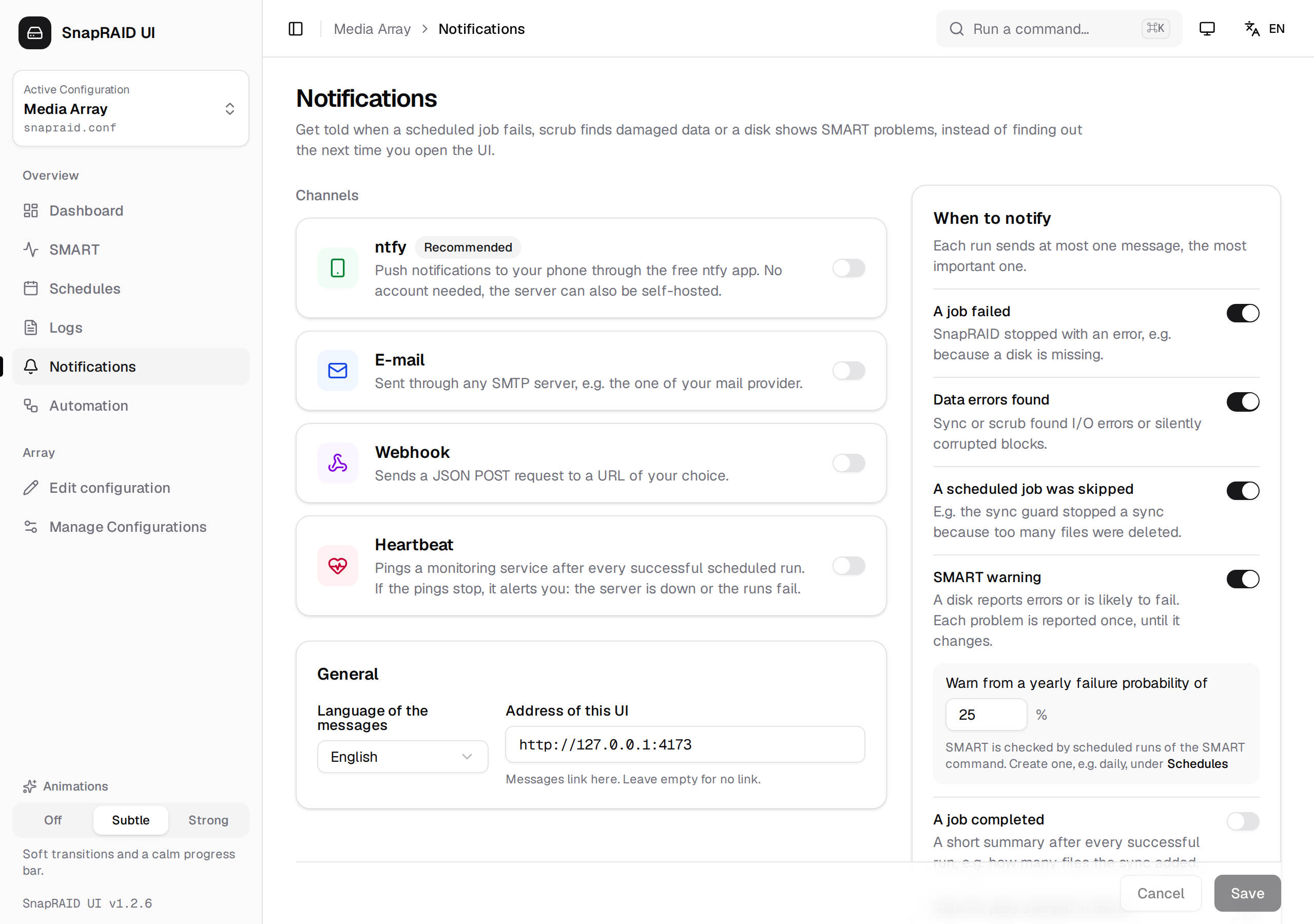
Changes take effect when you click Save. Until then the save bar shows Unsaved changes.
Channels
You can enable any combination of the three channels. Every message goes to all enabled channels.
ntfy (push to your phone)
ntfy delivers push notifications through a free app for Android and iOS. No account is needed, and you can also self-host the server.
| Field | Default | Description |
|---|---|---|
| Server | https://ntfy.sh |
Your ntfy server. |
| Topic | (empty) | The topic to publish to. Random generates a name like snapraid-…. |
| Access token (optional, for protected topics) | (empty) | Sent as Authorization: Bearer <token>. |
- Install the ntfy app and subscribe to your topic. Open in the browser opens the topic on the server.
- Click Send test.
[!WARNING] Anyone who knows the topic name can read along on a public server. Keep it random, or use a protected topic with an access token.
Messages are published as JSON, with priority and tags depending on the severity:
| Severity | ntfy priority | Tag |
|---|---|---|
| info | 2 (low) | white_check_mark |
| warning | 4 (high) | warning |
| error | 5 (max) | rotating_light |
If Address of this UI is set, tapping the notification opens the UI, and the message gets a "SnapRAID UI" button.
E-mail (SMTP)
Sent through any SMTP server, e.g. the one of your mail provider.
| Field | Description |
|---|---|
| SMTP server | Host name, e.g. smtp.gmail.com. |
| Encryption | STARTTLS (port 587, required), SSL/TLS (port 465) or None (port 25, no TLS). Changing it also changes the port, as long as the port is still the default of the previous choice. |
| Port | Default 587. |
| Username / Password | Leave the username empty for servers without login. |
| Sender | The From address. If empty, the username is used, which then must be an e-mail address. |
| Recipient (comma separated) | One or more addresses. |
The subject is [SnapRAID] <title>, the body is the plain-text message followed by the UI address, if set.
[!TIP] Gmail:
smtp.gmail.com, port 587, STARTTLS, and an app password instead of your account password.
Webhook
Sends a JSON POST request to a URL of your choice (must start with http:// or https://). It works as is with Discord, Slack and Mattermost webhooks, and with Home Assistant, n8n or Node-RED.
The request has the header Content-Type: application/json and this body:
{
  "event": "job_failed",
  "severity": "error",
  "title": "Failed: Nightly sync",
  "message": "Touch: OK (2 s)\nSync: failed (5 s)\n  <reason SnapRAID gave>\nScrub: not run\n\nConfig: snapraid.conf",
  "url": "http://nas:3000",
  "timestamp": "2026-10-05T02:00:07.123Z",
  "text": "**Failed: Nightly sync**\nTouch: OK (2 s)\n...\n\nhttp://nas:3000",
  "content": "**Failed: Nightly sync**\nTouch: OK (2 s)\n...\n\nhttp://nas:3000"
}
| Field | Type | Description |
|---|---|---|
event |
string | job_failed, data_errors, schedule_skipped, smart_warning, job_succeeded, or test for a test message. See Events. |
severity |
string | info, warning or error. |
title |
string | Short title, in the message language. |
message |
string | Plain-text body with line breaks (\n). |
url |
string | The Address of this UI. Omitted when it is empty. |
timestamp |
string | Time of sending, ISO 8601 in UTC. |
text |
string | **<title>**, a line break, the message, and the UI address (after an empty line) if set. Cut to 1900 characters. Slack and Mattermost show this field. |
content |
string | Same as text. Discord shows this field. |
For automations, use event and severity rather than parsing the text, which depends on the language.
A response other than 2xx counts as a failure. The status code and the start of the response body are shown when you test the channel.
Events
Under When to notify you choose which events send a message:
| Event | Default | event |
Severity | When |
|---|---|---|---|---|
| A job failed | on | job_failed |
error | SnapRAID stopped with an error, e.g. because a disk is missing. |
| Data errors found | on | data_errors |
error | A run reported I/O errors or silently corrupted blocks. The message points to the repair on the dashboard (Repair and verify). |
| A scheduled job was skipped | on | schedule_skipped |
warning | A scheduled run did not start, see When a schedule is skipped. |
| SMART warning | on | smart_warning |
warning, or error if a disk is critical | A disk reports errors or is likely to fail, see SMART warnings. |
| A job completed | off | job_succeeded |
info | A short summary after every successful run, e.g. how many files the sync added. |
Each run sends at most one message, the most important one: Data errors found wins over A job failed, which wins over A job completed. For a nightly routine (touch, sync, scrub) you get one message covering all steps, including steps that were not run.
A job you stopped yourself (Aborted) sends no message.
A run message lists each step with its result and duration, the changes of a sync (added, updated, removed, moved), error counts, the reason a failed step stopped, and the configuration file name:
Sync: OK (12 min)
  152 added, 3 updated, 10 removed, 0 moved
Scrub: OK (41 min)

Config: snapraid.conf
Manual jobs
By default only scheduled jobs send messages. Switch on Also for jobs started in the UI to also get them for sync, scrub, fix and check that you start yourself, which is useful for long scrubs or fixes you start and then walk away from. Their title reads e.g. "Failed: Manual Scrub".
SMART warnings
SMART warnings come from scheduled runs of the smart command. Opening the SMART page doesn't send them. Create a smart schedule, e.g. daily, under Scheduling.
Each disk is judged by the same rules as on the SMART page, and one message per configuration lists all disks with new or changed problems, followed by advice (replace the disk, check the cable, improve cooling, check access):
d2 (/dev/sdb, WDC WD40EFRX, WD-WCC4E1234567): 8 reallocated sectors

Consider replacing the disk before it fails.
Each problem is reported once, until it changes. A disk is reported again when:
- a new kind of problem appears or its level changes (warning to critical),
- a sector or error count changes, e.g. 8 to 12 reallocated sectors.
Temperature, failure probability and SSD wear are only compared by kind, since their values drift. When a disk is healthy again, it is forgotten, so a later problem is reported again. This state is kept in notifications-state.json in the data directory.
Warn from a yearly failure probability of (default 25 %, 1–100) sets when SnapRAID's failure estimate counts as a problem. 50 % and more is always critical. The SMART page uses the same threshold, so the page and the messages agree.
General settings
| Field | Description |
|---|---|
| Language of the messages | English, Deutsch or Italiano. Independent of the UI language, because messages are sent by the server. |
| Address of this UI | Messages link here, e.g. http://nas:3000. Leave empty for no link. |
When you open the page for the first time, before any channel is set up, both fields are filled from your browser: the address you use to reach the UI and the current UI language. Check the address if you reach the UI through a reverse proxy or a different host name.
Heartbeat
Not a message channel but the opposite: a sign of life. After every scheduled run that succeeded, SnapRAID UI sends a GET request to the heartbeat URL. Monitoring services such as healthchecks.io, Uptime Kuma push monitors or Dead Man's Snitch alert you when the pings stop, which covers what no notification can: the server is off, the container stopped, or every run fails or is skipped.
| Field | Description |
|---|---|
| URL | The ping URL of the check, e.g. https://hc-ping.com/<uuid> or https://uptime.example.com/api/push/<token>. Must start with http:// or https://. |
Only scheduled runs ping, and only when every step succeeded (warnings count as success). Skipped, failed and aborted runs send no ping. Set the expected period of the check to your schedule, for a nightly sync one day plus some grace time. Send ping sends one ping with the URL as entered.
Testing
Each channel has a Send test button. It sends a test message with the values currently in the form, even unsaved ones and even while the channel is switched off, so you can try settings before saving them. You see Test notification sent or Test failed: … with the error, e.g. the HTTP status or the SMTP error.
The test message has the title "Test notification" (in the message language), event: "test" and severity info. The heartbeat has Send ping instead, see Heartbeat.
Good to know
- Sending times out after 15 seconds per channel. A failed notification never fails the job. The error is written to the backend log (
docker logs snapraid-ui). - Settings are stored in
notifications.jsonin the data directory, readable only by its owner (mode 600), because it holds the SMTP password and the ntfy token. The UI never sends them back to the browser; a stored secret is shown as********. To keep it, leave the field as is. notifications.jsonis included in the backup, including the password and token. Keep backup files private.