Usage
Once a connection is set up, sending a video is one click, one shortcut or one right-click. The extension sends the page URL; Kodi resolves it and plays it. This works on every site yt-dlp supports, and for direct links to media files.
The popup
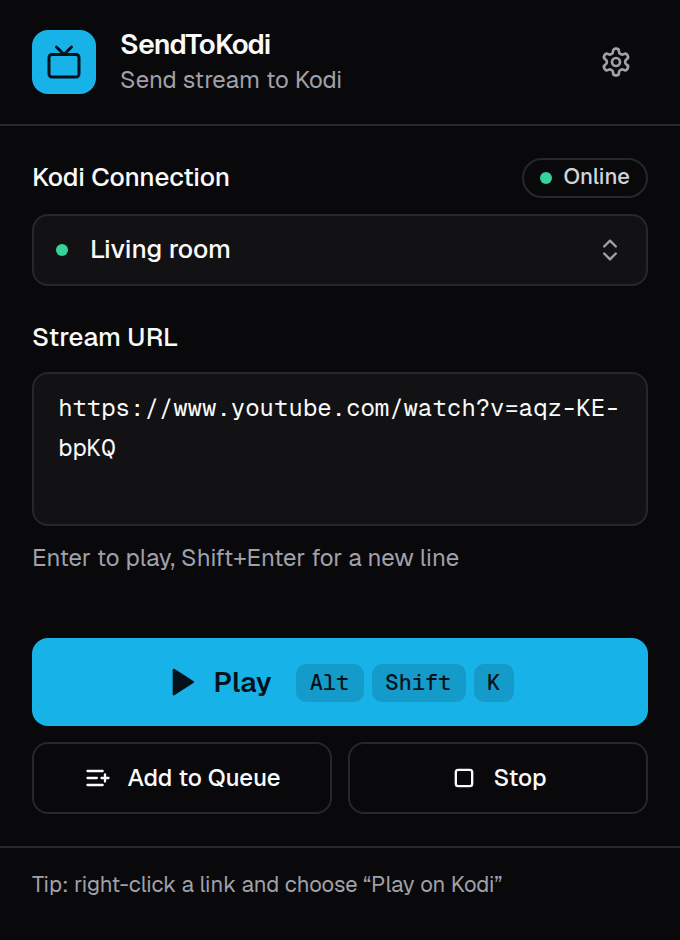
Click the SendToKodi icon on a video page. The URL of the current tab is already in the Stream URL field:
| Button | What it does |
|---|---|
Play (Enter in the URL field) |
Plays the URL on the active Kodi device. The popup closes when Kodi accepts the request. |
| Add to Queue | Appends the URL to Kodi's playlist without interrupting what is playing. If nothing is playing, the item waits in the playlist. |
| Stop | Stops all players on Kodi. |
| Connection dropdown | Switches the active Kodi device. |
| ⚙️ | Opens the connection settings inside the popup; ↗ opens the full settings page. |
The badge next to Kodi Connection shows Online, Offline or Unknown for the active device. The check runs when the popup opens and when you switch the device, once access to that device has been granted.
Keyboard shortcuts
| Shortcut | Action |
|---|---|
Alt+Shift+K |
Play the current tab on Kodi |
Alt+Shift+Q |
Add the current tab to Kodi's queue |
The shortcuts work without opening the popup. The toolbar icon shows ✓ for a few seconds when Kodi accepted the request and ! when something went wrong; hover over the icon to read the message. If the error is a missing connection or a missing permission, the settings page opens so you can fix it.
Changing the shortcuts: browsers manage extension shortcuts centrally.
- Chrome, Brave, Vivaldi, Opera: open
chrome://extensions/shortcuts - Edge: open
edge://extensions/shortcuts - Firefox: open
about:addons, click the ⚙️ icon at the top and choose Manage Extension Shortcuts
The settings page shows the shortcuts currently assigned.
The context menu
Right-click a link, a video, an audio element or anywhere on a page. Browsers group the two entries in a SendToKodi submenu:
| Entry | What it sends |
|---|---|
| Play on Kodi | The link under the cursor; on a video or audio element its source; otherwise the page URL |
| Add to Kodi queue | The same, appended to Kodi's playlist. The selected text (for a link) or the page title becomes the item's label. |
This is the way to send a video without opening it first: right-click a thumbnail link on a YouTube channel page, a search result or a playlist, and choose Play on Kodi. The result shows on the toolbar icon as with the shortcuts.
Any URL
Paste any URL into the popup's Stream URL field and press Enter or Play. The field accepts page URLs of
supported sites, playlist and channel URLs, and direct links to video or audio files (.mp4, .mp3, .m3u8). A
playlist URL puts all its entries into Kodi's playlist and starts the first one.
Playlists on Kodi
Add to Queue builds a playlist on Kodi: queue several videos one after the other and Kodi plays them in order. The queue is Kodi's normal video playlist, so you can see and rearrange it in Kodi (Playlist in the player's menu) and mix it with items from Kodi's own library.
Several Kodi devices
The dropdown in the popup selects the device for the popup, the shortcuts and the context menu alike. The chosen device is remembered. To add or edit devices, see Setup.
What the extension does not do
- It does not read or modify the pages you visit; it only takes the URL when you act.
- It does not resolve videos itself. Which sites work, and in which quality, is decided by yt-dlp inside the Kodi add-on; see its documentation.
- It does not control Kodi beyond play, queue and stop. For a full remote, use Kodi's web interface or Kore.