Web viewer
The web viewer lets you use a Fernsicht host from a browser, without installing anything, from any computer, tablet or phone on the same network. The host serves the page itself.
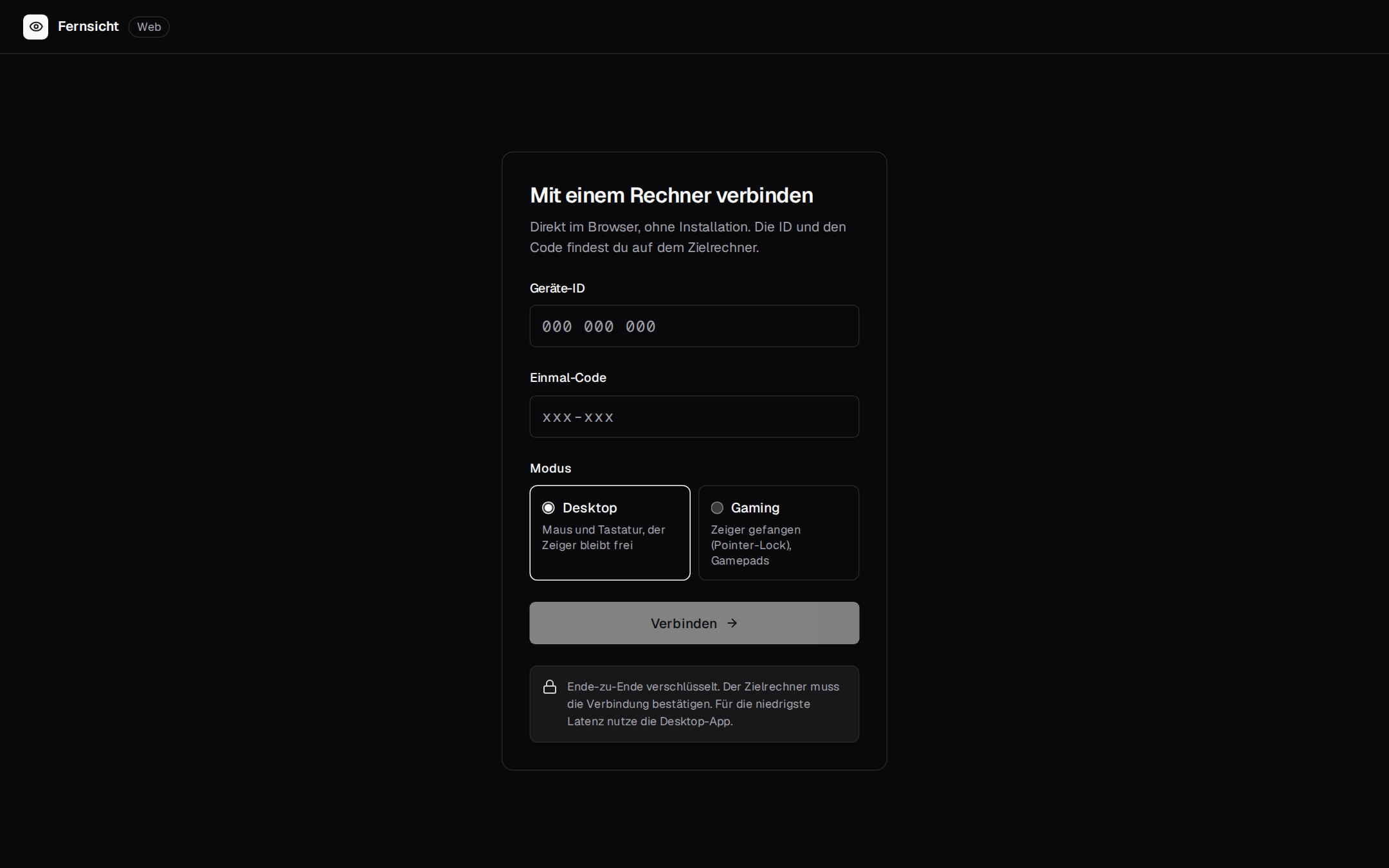
Connect
- In the browser, open the host's address:
http://192.168.178.87:47800(the install script prints it at the end). - On the host, choose “Gerät koppeln” (pair device), either in the app or
with
fernsicht-host-agent pair. - Enter the PIN in the browser and click “Verbinden” (connect).
How it works
- Access: The PIN is valid for one session. The browser is not paired and needs a new PIN next time.
- Transport: Video (AV1 if the browser and the host's graphics card support it, otherwise H.264), audio and input are sent encrypted over WebRTC. Input takes two data channels: pointer moves an unordered one without retransmits (a lost move is not waited for, the next one replaces it), everything else a reliable, ordered one. Positions are numbered across both, so an old one never undoes a newer one.
- Bitrate: the browser reports how the packets arrive (TWCC), and the host estimates from that what the path carries: the video takes 85 % of it, never more than the session started with. It drops at once when the path narrows (Wi-Fi, a phone on mobile data) and climbs back after 5 s in steps of at most 1.5×, as each change costs the encoder a keyframe.
- Input: In Desktop mode the mouse controls the host directly, and
the host's pointer image is the browser's own pointer (it moves at once,
without the round trip) as soon as the host knows its tip. In
Gaming mode a click into the video captures the mouse pointer, and
Esc releases it; where the browser can, the movement is raw, without the
desktop's acceleration (
unadjustedMovement). On secure pages Chrome reports moves the moment the system does (pointerrawupdate), not with the next frame. Controllers work through the Gamepad API; some browsers only expose them on HTTPS pages. - Interruptions: if the connection drops for a moment (Wi-Fi), the picture shows “Verbindung unterbrochen …” and continues when it comes back; after 10 s without it, the session ends. Leaving the page (browser back, closing the tab) ends the session on the host at once. A browser that never manages to connect (blocked UDP) is given up after 10 s.
- Monitors: with two or more monitors on the host, “Bildschirm wählen” (choose screen) in the toolbar switches the one shown.
- System keys: Ctrl+Alt+Del, the Super key (KDE: Meta) and similar keys are in
the “Tasten senden” (send keys) menu. Chrome and Edge can also pass the
Super key, Alt+Tab and Esc through in full screen (Keyboard Lock), but
only on secure pages: over the LAN the page is plain
http://, so there these keys stay with the browser's computer (HTTPS for the viewer is on the list of next steps). Until then Chrome and Edge can treat the host's address as secure: the connect page says how under “Systemtasten und Spielmaus freischalten” (unlock system keys and the gaming mouse): openchrome://flags/#unsafely-treat-insecure-origin-as-secure(Edge:edge://flags/…), enter the page's address (e.g.http://192.168.178.87:47800), choose “Enabled” and restart the browser. That brings Keyboard Lock andpointerrawupdateto the viewer. Firefox and Safari have neither, so the page shows them no hint. - Toolbar by keyboard: Ctrl+Alt+T moves the keyboard into the toolbar, Esc gives it back to the host; Ctrl+Alt+F shows and hides the toolbar.
- What does not work: Keys that the browser keeps for itself (for example Ctrl+W) do not reach the host. Use the app for that. On the iPhone there is no full screen for web pages.
Phones and tablets
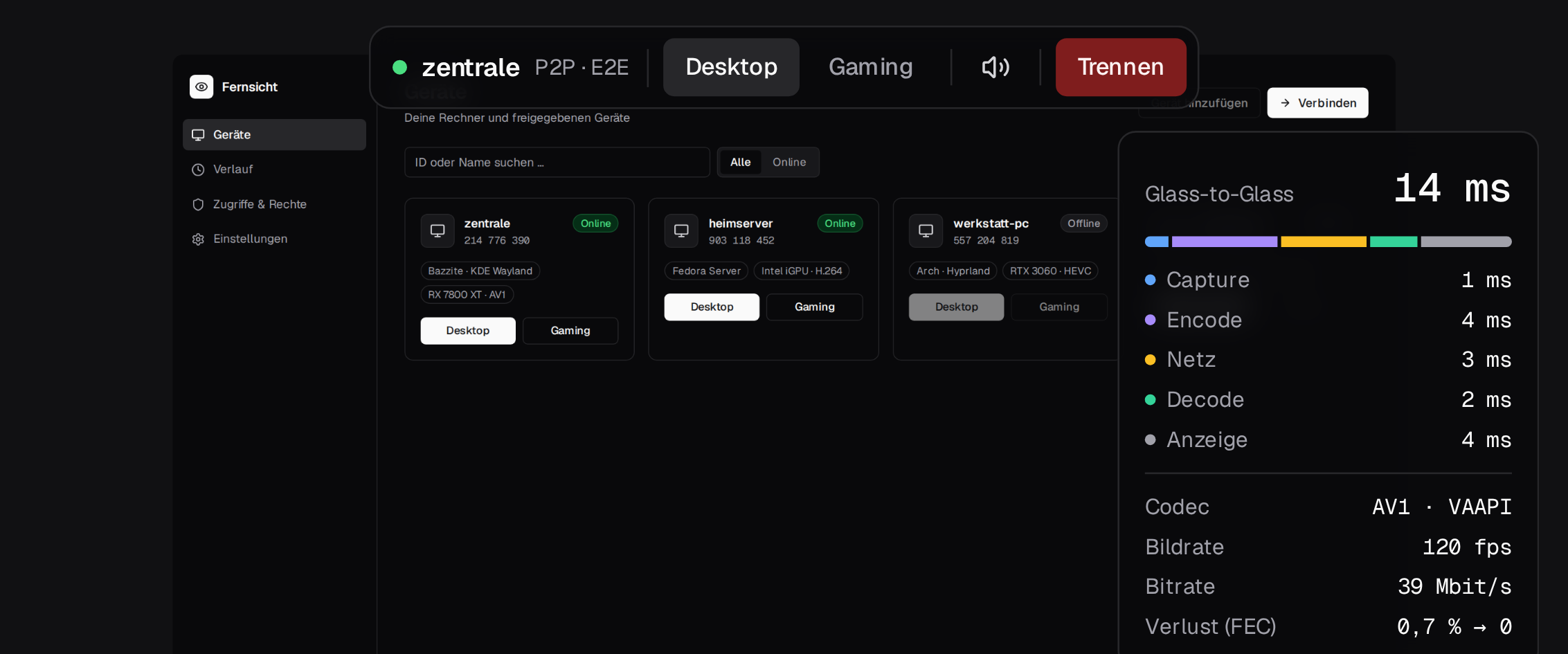 |
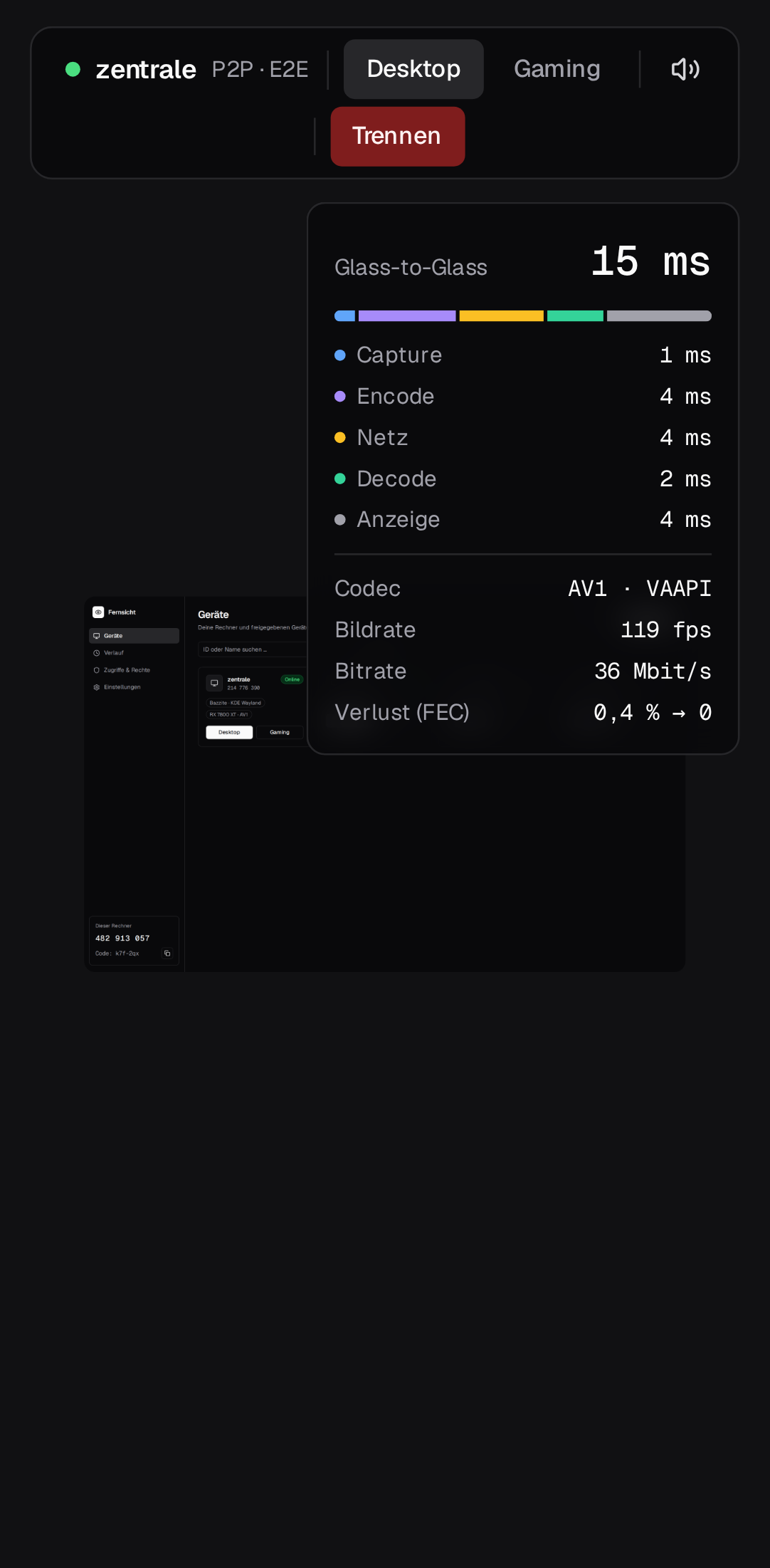 |
| Gesture | Desktop mode | Touchpad mode |
|---|---|---|
| Tap | left click where the finger is | left click where the pointer is |
| Move one finger | drag with the left button | move the pointer |
| Long press | right click | then move: drag |
| Two fingers together | scroll | scroll |
| Short tap with two fingers | right click | right click |
| Spread or pinch two fingers | zoom into the picture | zoom into the picture |
- Zoom happens only on the phone; the host does not notice. While zoomed in, two fingers move the visible area; the magnifier in the toolbar resets it.
- Touchpad mode (pointer icon in the toolbar, shown on touch screens): your finger moves the pointer like on a touchpad, which is easier for small targets. In Gaming mode this always applies (phones have no pointer capture).
- On-screen keyboard: keyboard icon in the toolbar. What you type is sent to the host as key presses, word suggestions included. For this the viewer assumes that the host uses the keyboard layout of the browser language (German or US).
- Portrait and landscape both work; the video adapts when you rotate the device, and taps keep hitting the right place.
Limitations
Unencrypted on the LAN
The page and the PIN travel unencrypted through the LAN (http://).
The PIN is valid only once and only for 5 minutes.
- Firewall: The host needs TCP 47800 for the page and a free UDP port
above 1024 for WebRTC. Fedora and Bazzite allow both;
install-host.shopens 47800. - Browser: Tested with Chrome and Firefox and on a phone. Firefox plays H.264 only with a suitable H.264 decoder installed.
- Over the internet: only through a VPN for now, see remote access.