How syncing works
Syncing saves is easy until two PCs disagree. Spielstand is built around one rule: no save is ever lost, whatever the order in which PCs go on and off, games run and networks fail.
Versions
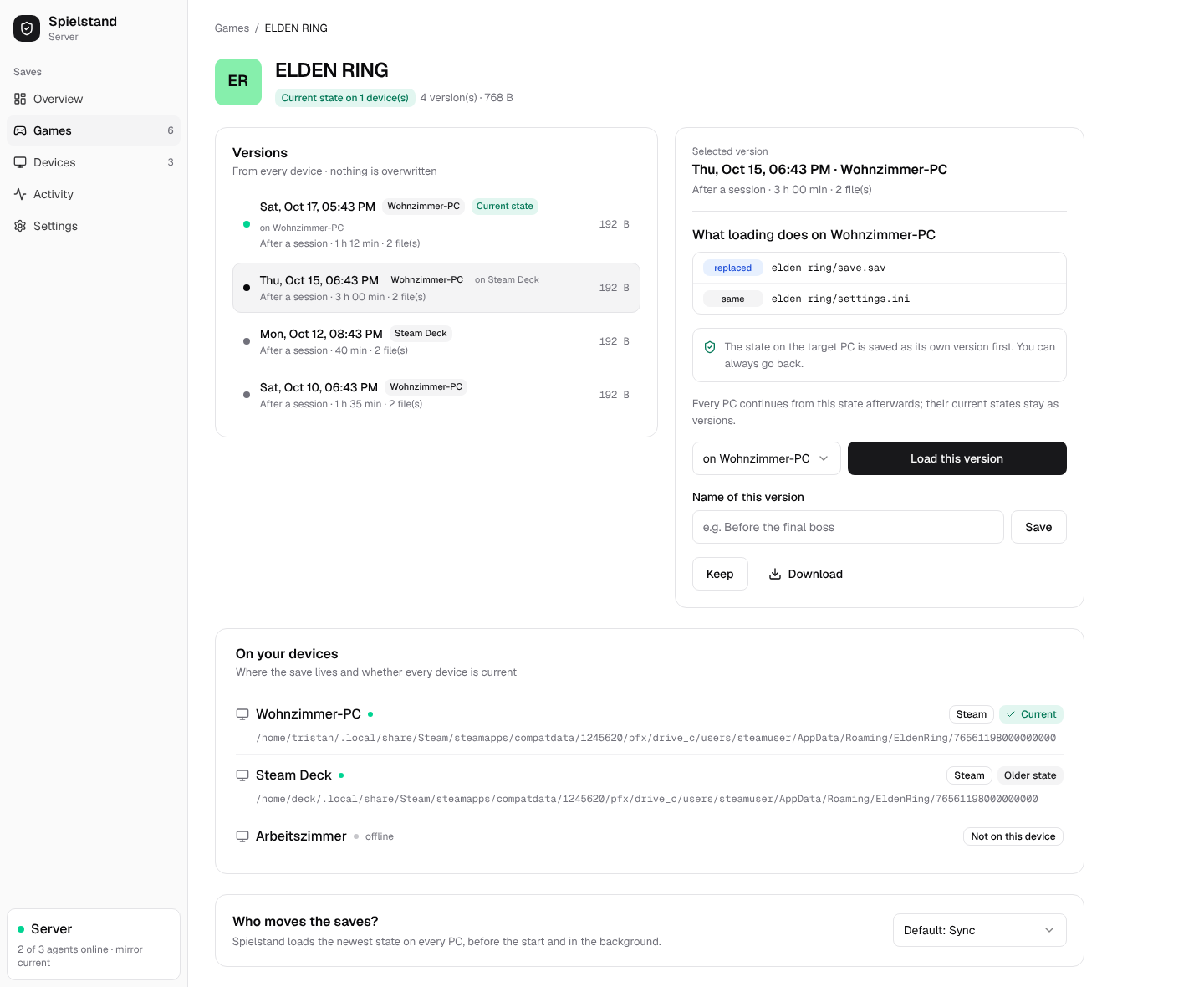
Every backup of a game is a version: a compressed package of the save files, identified by its content, with the PC, the time, the reason (after a session, before a restore, …) and the version it was based on (its parent). Versions are never changed. A game's history is a tree of versions; its current state (head) is the newest version every PC should have.
The safety rules
- Back up before writing. Before the agent writes saves to a disk, it stores what is on that disk as a version of its own (saved before loading). If the disk holds something no version has yet, it is uploaded first; offline it waits in the agent's outbox.
- Write atomically. New files are written next to the old ones, checked against their hashes and only then renamed into place. Files the version does not have go to the agent's trash, not away. If anything fails, the previous state is put back.
-
Decide by ancestry, never by clocks. Each PC remembers which version it last had (its base) and what its saves looked like then. That gives four cases:
On the PC On the server What happens unchanged unchanged nothing unchanged a newer version the PC loads it (fast-forward) changed unchanged the PC uploads its state, it becomes the current one changed a newer version conflict: both are kept, you choose -
The server moves the current state only by compare-and-swap. An upload says which version it is based on; the server makes it the current state only if that is still the current state. Two PCs uploading at the same moment cannot overwrite each other: the second becomes a branch.
- A running game is never touched. The agent sees running games (also under Proton) and loads nothing while one runs; the web UI shows which PC is playing what.
Modes: sync or back up only
Each game has a mode; new games get the default mode from the settings, a game's page can change it.
- Synchronize: the four cases above. Every PC follows the current state.
- Back up only: every change on a PC is backed up as a version right away, but nothing is ever written to a disk on its own. Use it while another program still syncs the saves, or for a game you want versions of but play on one PC. Loading a version by hand from the web UI still works.
A game set to Synchronize is backed up only on a PC whose save lies in a folder that another program keeps in step (see Other sync programs), and on the PC that proposed a custom game until it is taken over in the web UI; the web UI says so on that PC's row.
Loading a version
Load this version on a game's page sends the version to a connected PC. The PC first backs up what it has, then writes the version.
Loading means continue from here: the loaded version becomes the current state, so what you play next builds on it.
- In Synchronize mode every other PC follows it, each backing up its own state first.
- In Back up only mode only the chosen PC changes.
Older saves over newer ones
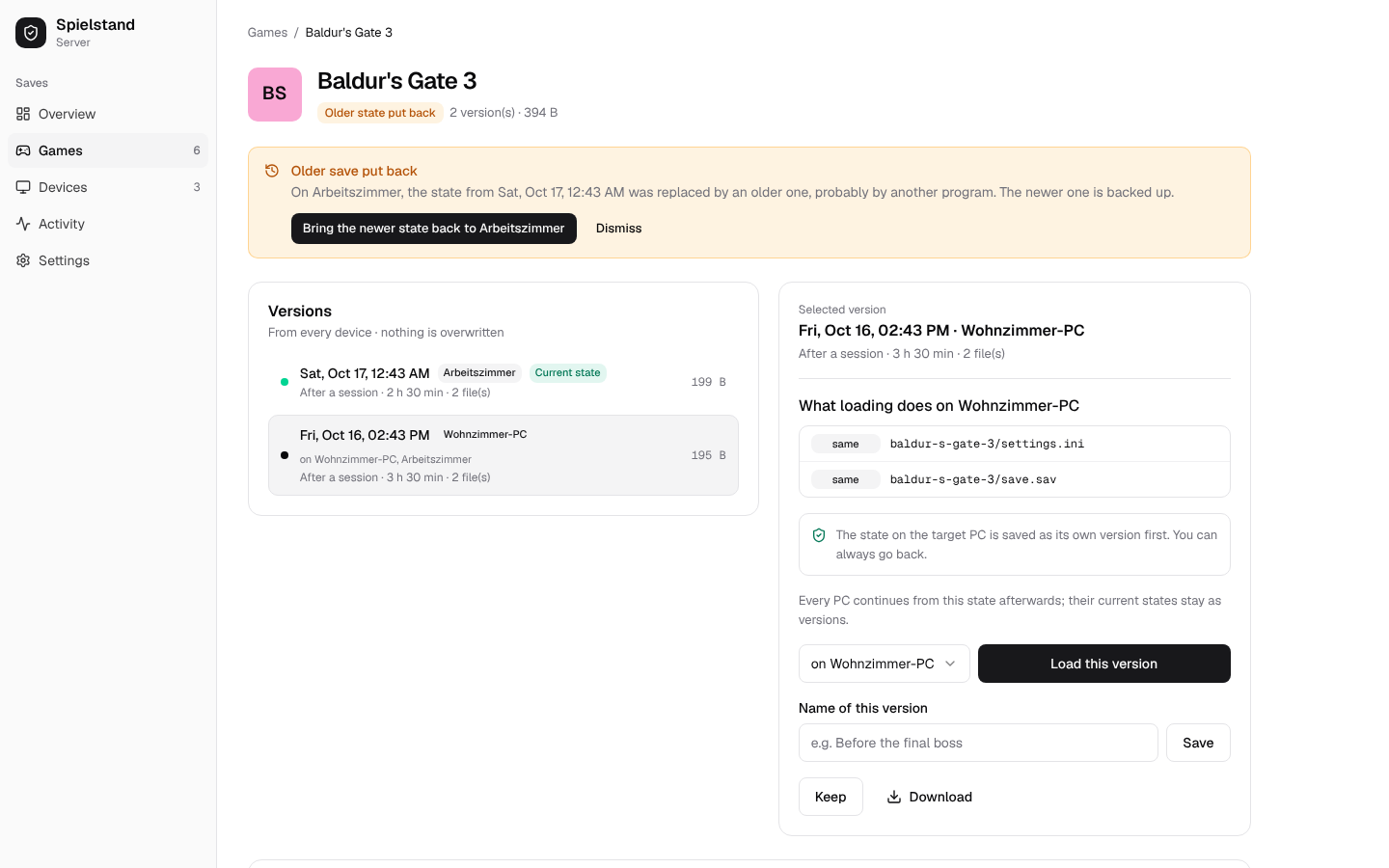
Another program (a sync tool, a copy by hand, a cloud restore) can put an older save over a newer one. The agent notices when a PC's saves become a version the server already knows that is not descended from what the PC last had. It then:
- records the change as a version, so nothing is lost,
- raises an alert on the overview and the game's page: on PC X the state from … was replaced by an older one,
- in Synchronize mode, does not upload the older state as the current one; the PC catches up with the current state again.
The alert offers to load the newer state back onto that PC, or to dismiss it. It goes away on its own once the PC holds the newer state again, or a state built on it.
Games in Wine prefixes
Under Linux most Windows games keep their saves inside their own Wine prefix
(<prefix>/drive_c/users/<name>/…). Spielstand stores those saves relative to the prefix and the
Windows profile, so the same version can be loaded into a different prefix on another PC: the
Steam Deck's prefix on the SD card and the desktop's in ~/Games hold the same save. In a prefix,
the profile steamuser is used, otherwise the only profile there is.
Which prefix belongs to a game on a PC is found in this order:
- the prefix chosen for that PC on the game's page,
- the one Prefixr game of that name,
- the prefix the saves are in right now,
- the prefix the version came from, if the same path exists here.
If several prefixes could fit, nothing is written; the game's page asks which one it is. Once the game's own prefix (1 or 2) holds saves, saves of the game in other prefixes, such as an old prefix it moved out of, are left alone: they are neither backed up as the game's state nor overwritten.
A new PC
A new PC follows every game it has installed (found by a launcher, Prefixr or a prefix chosen in the web UI), also when it has no saves for it yet: it loads the current state as soon as it knows where the saves go.
Other sync programs
Two programs that both sync the same save files fight each other. The agent checks every save folder:
- Syncthing: if the save lies in a Syncthing folder and is not excluded in its
.stignore, the game is backed up only on that PC, and the web UI shows the folder and why. - Stellwerk: Spielstand writes the save folders of every
game it synchronizes to
~/.local/share/stellwerk-agent/ignore.d/spielstand.list; Stellwerk then leaves them out, so it syncs the game and the prefix and Spielstand the saves.
Conflicts
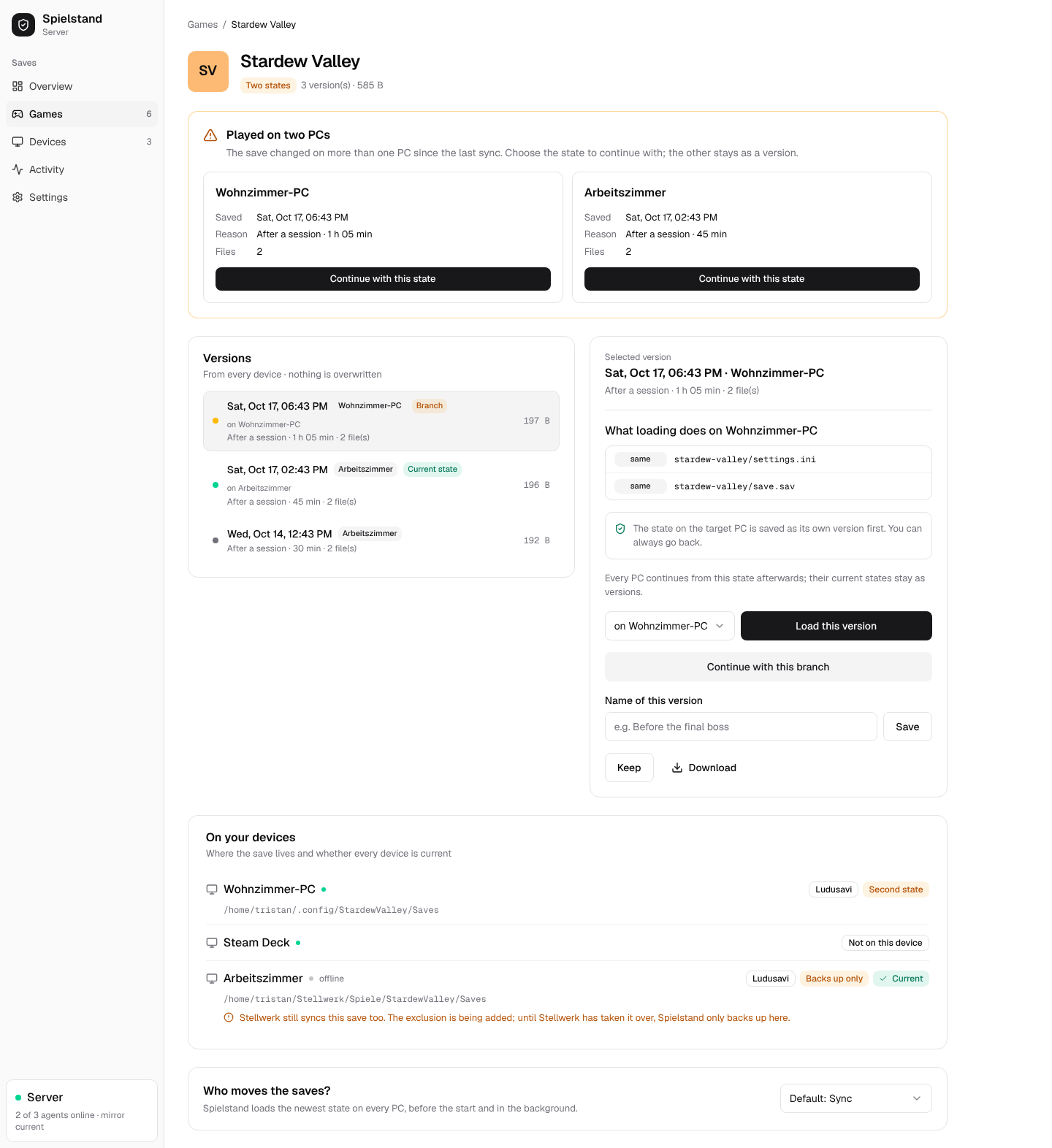
A conflict happens when a game was played on two PCs without a sync in between, for example on the Steam Deck in the garden without Wi-Fi. Both states are stored. The web UI shows them side by side with time, PC and play time; choosing one makes it the current state. The other one stays a version you can load any time.
On the PC itself, the launch option asks too: a desktop notification offers use the newest or keep mine. Without an answer within a minute the PC keeps its own state, which is also safe.
Games with Steam Cloud
Games whose saves Steam Cloud already syncs are backed up, so they get versions too, but are not
loaded automatically, to not fight with Steam. Loading such a version by hand from the web UI works.
restore_steam_cloud_games = true in the agent's configuration changes that.
Retention
Old versions are thinned out, never the ones that matter:
- the last 7 days: every version,
- up to 90 days: one per day,
- older: one per week.
Never removed: versions you marked keep, the current state, every PC's base, open branches and the newest version of every PC. Removed versions stay in the server's trash for 30 days.