The app
Three pages, switched at the top: Basics, Sound and Light. The chip next to the name says whether the microphone is connected. Plug it in at any time; the app finds it within a second and reads its settings.
Changes go to the microphone at once, and it keeps them itself, also without the app and after unplugging.
Basics
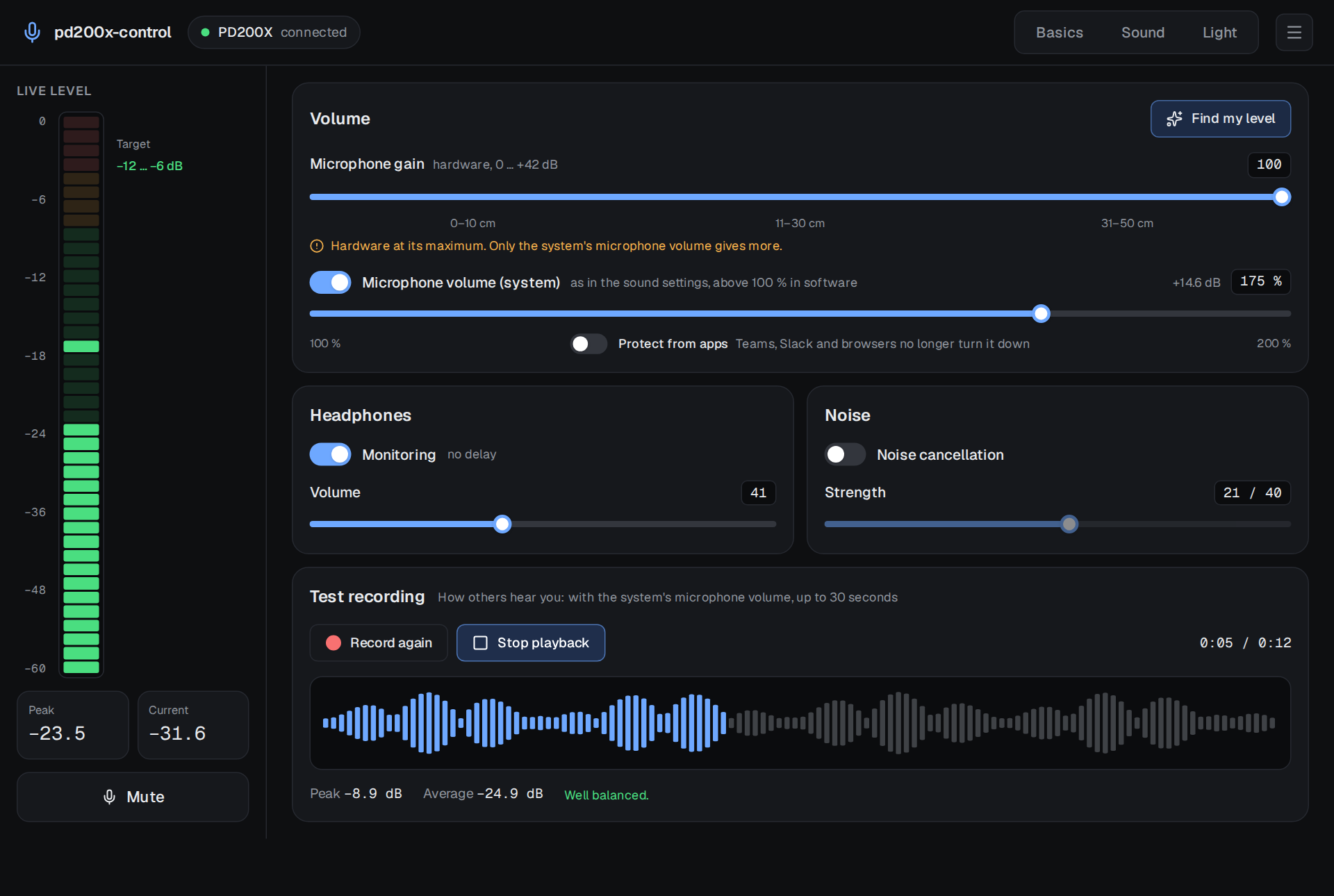
Live level (left): the level the microphone reports, about 18 times a second, in dBFS. The green marker is the peak of the last one and a half seconds. Speech peaks belong in the target zone, −12 to −6 dB: loud enough for every call and recording, with room before it clips.
Mute: the same as the button on the microphone; its LED turns red.
Microphone gain is the preamp in the microphone, 0 to 100 (about 0 to +42 dB). The distances under the slider are MAONO's rule of thumb: the closer you speak, the less gain you need. At 100 the app reminds you that only the system volume gives more.
Microphone volume (system) is the volume of the microphone's input in PipeWire, the same control your desktop's sound settings show (KDE, GNOME, …). Above 100 % it amplifies in software; 175 % is +14.6 dB. Change it here or there, both show the same value. See A quiet microphone.
Protect from apps: Teams, Slack and browsers (WebRTC's automatic gain control) turn the system
microphone volume down during a call and leave it there, so after a call you are quiet again
everywhere else. With this switch on they cannot change it any more; they adjust your level inside
the call as before. The control in the system's sound settings cannot change it then either, only
this app. It writes ~/.config/pipewire/pipewire-pulse.conf.d/90-pd200x-control.conf and restarts
pipewire-pulse, so sound stops for a moment when switching; the app asks first. Restart running
browsers and call apps (Teams, Slack, Discord) once afterwards, or they will not find the microphone.
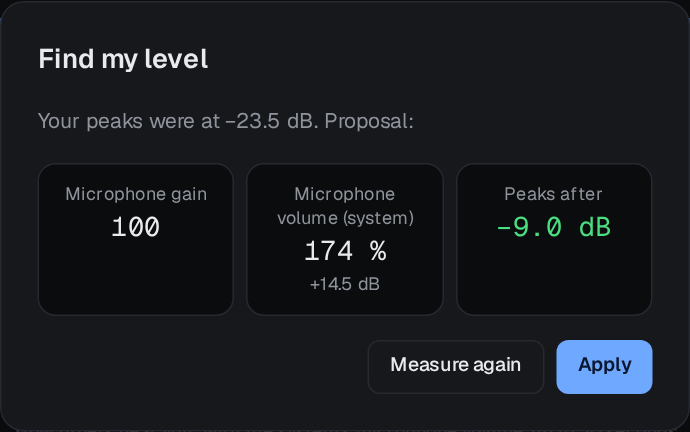
Find my level: speak for five seconds the way you usually do. The app measures your peaks and proposes gain and system volume so they land near −9 dB. It raises the hardware gain first (it adds less noise) and only then the system volume. Nothing changes until you press Apply.
Headphones: Monitoring routes the microphone straight to the headphone jack on the microphone, without delay; Volume is the headphone level (the knob on the microphone changes it too). The switch on the bottom of the microphone turns monitoring on and off as well.
Noise: the microphone's own noise cancellation and its strength, 0 to 40.
Test recording
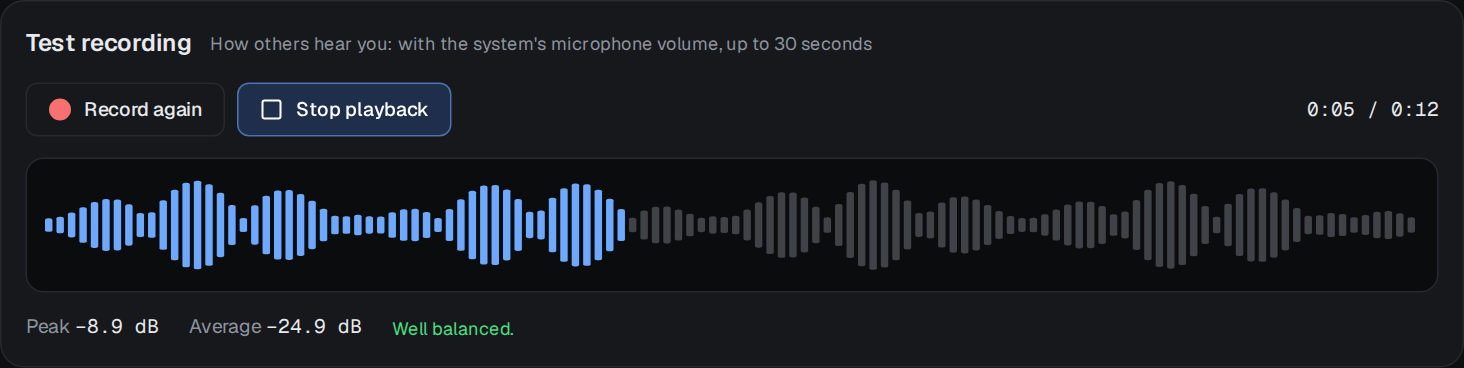
Records up to 30 seconds and plays it back on your normal output. The recording comes from PipeWire, so it contains the system volume and sounds like what others get in Discord, OBS or a browser. The microphone's own monitoring cannot do that: it comes from the microphone before the computer.
After recording you see the peak and the average in dB and a short verdict: rather quiet, well balanced or very loud. The waveform is scaled to the loudest part, so quiet recordings show their shape too. The recording is a temporary file that is deleted when the app quits.
Sound
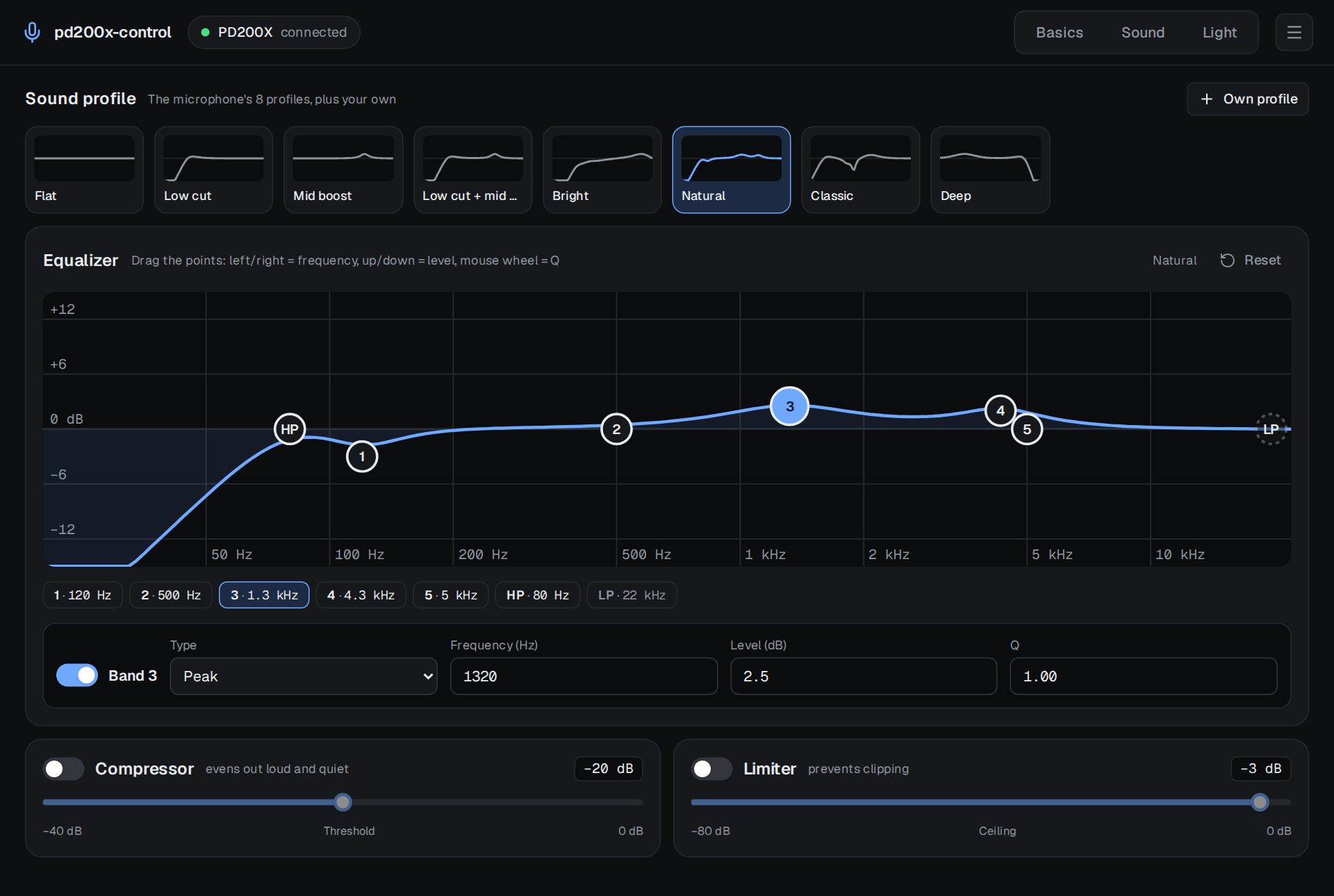
Sound profile: the eight profiles MAONO Link offers (Flat, Low cut, Mid boost, Low cut + mid boost, Bright, Natural, Classic, Deep), each with its curve, and your own profiles. A click sends it to the microphone. When the app connects, it recognises which profile the microphone has.
Own profile saves the current EQ under a name. Hover over an own profile to rename or delete it.
Equalizer: the curve is computed from the bands the way the microphone's DSP applies them. Drag a point: left and right changes the frequency, up and down the level; the mouse wheel changes the Q. Arrow keys do the same when a point has the focus. Below the graph, pick a band and type exact values: type (peak, low shelf, high shelf), frequency, level and Q. HP and LP are the high-pass and low-pass filters; only their frequency can be changed. Once you change a band, the EQ is a "custom setting"; Reset then sets Flat (on a profile it sends the profile again).
Compressor evens out loud and quiet; Limiter stops peaks above its ceiling. Both take a threshold in dB, like in MAONO Link.
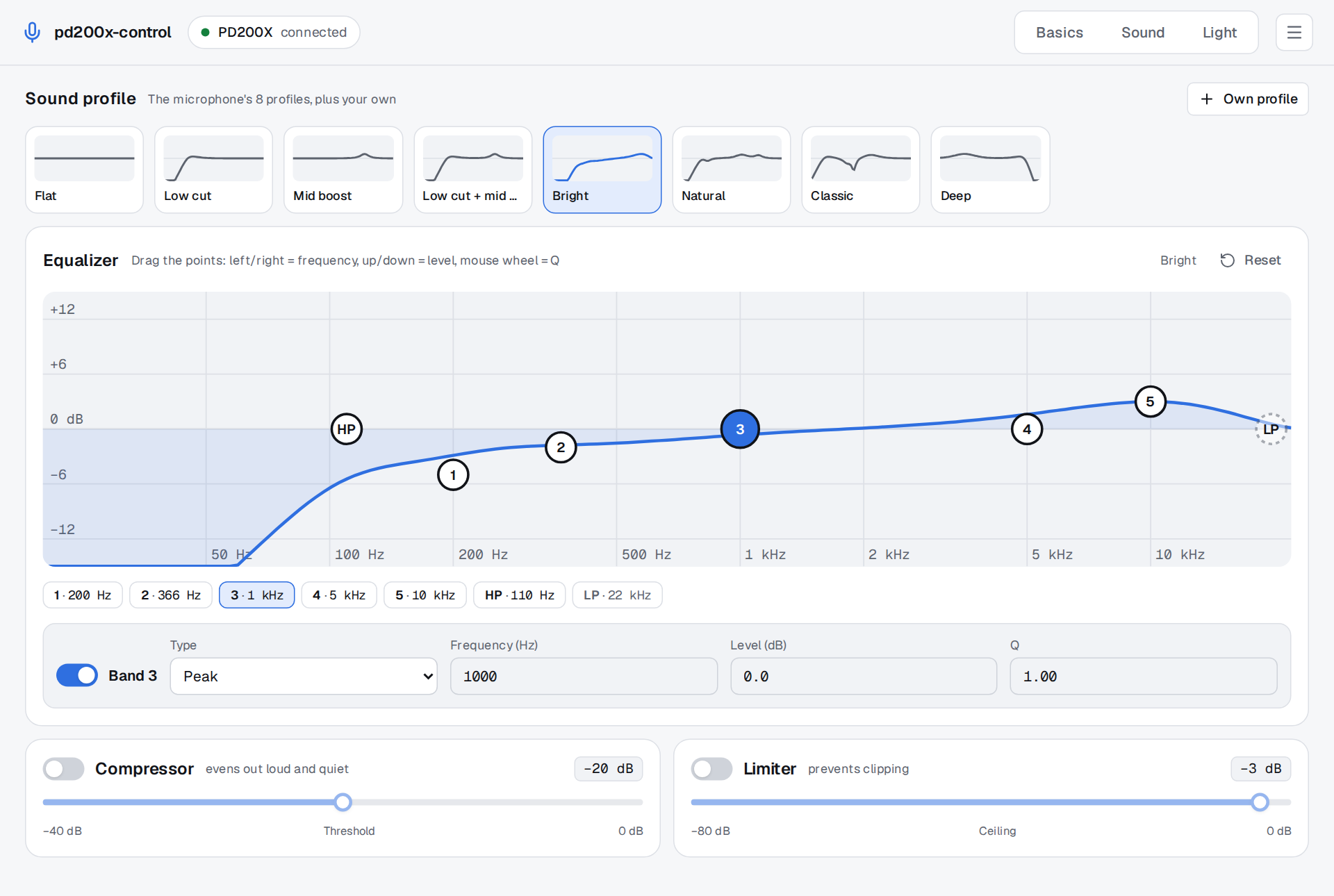
The app follows the system's light or dark theme.
Light
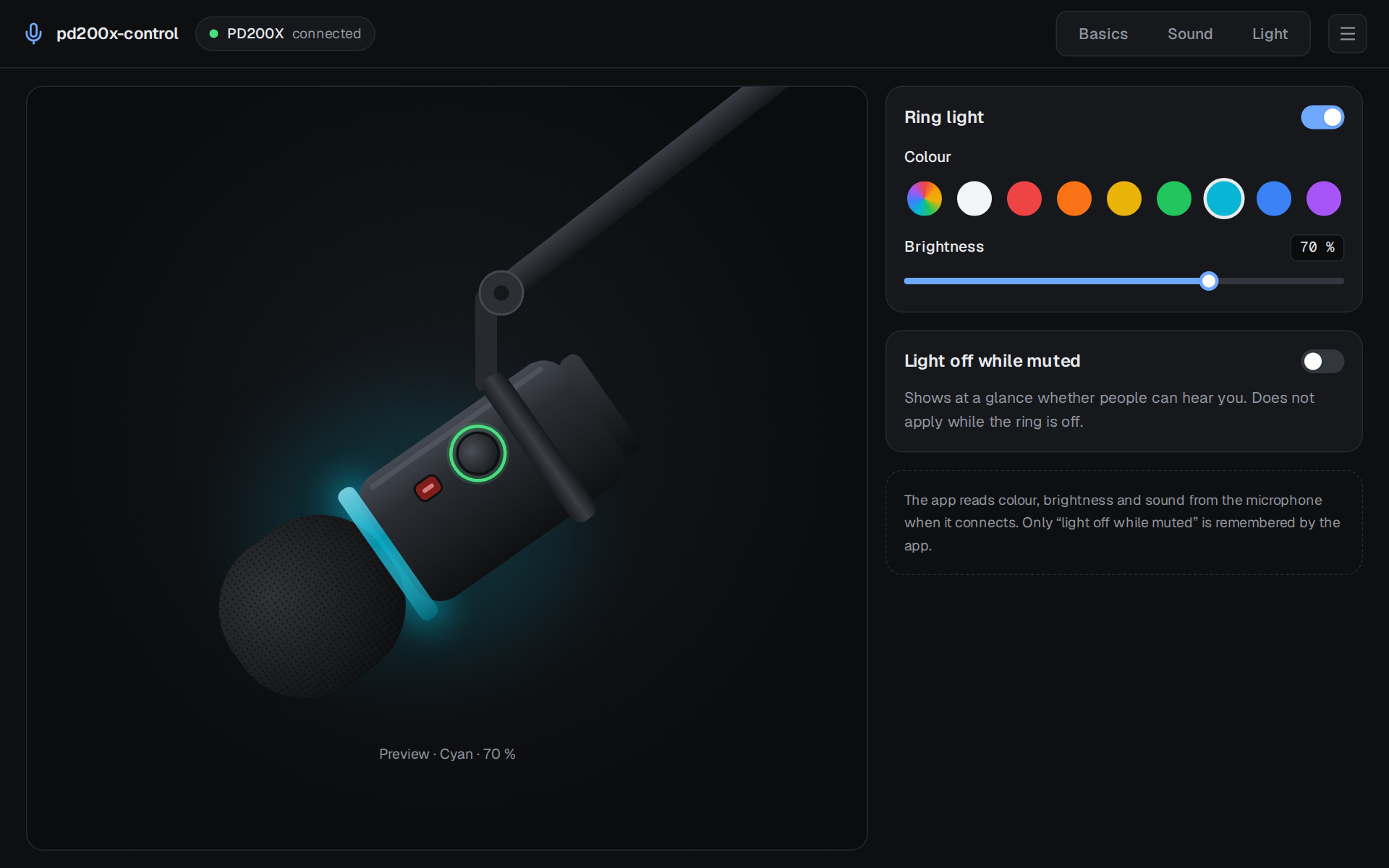
The ring light on or off, nine colours (including a rainbow) and the brightness. Light off while muted turns the ring dark whenever the microphone is muted, so you see at a glance whether people can hear you.
Menu
- Send sound and light again when plugged in: off by default, because the microphone keeps its settings. Turn it on if yours forgets them; the app then sends the EQ, compressor, limiter and light it last set whenever the microphone is plugged in.
- Language: like the system, German or English.
- About: version, license and source.
Tray
Where the desktop has a tray, the app adds an icon with Toggle mute, Open window and Quit. Closing the window then keeps the app in the tray; quit it from there.